
A text when a ticket is handed to you, one place for your team’s alerts, and a signed hand-over for paid repairs
A shop owner asked why one of his technicians never got a text about the tickets handed to him. Answering it meant checking settings on five different screens, and the honest answer was that the text he wanted didn’t exist yet.
Now it does, and the question has a page. Your shop decides who hears about new tickets, customer replies and online orders, on Team alerts. Each person decides whether those reach their phone, on their own Alerts tab, which says alert by alert what they’ll be told and how.
And a shop that takes payment up front asked for a better finish. When the customer had paid at drop-off or online, nothing marked the moment they walked out with their repair; someone just changed the ticket to Completed. Now there’s a hand-over for that.
My Profile → Alerts
Technicians hear about their tickets the moment they get them
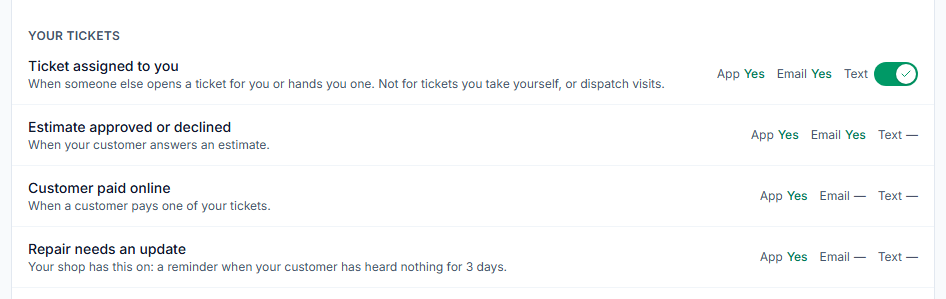
Turn on Text on the “Ticket assigned to you” line, and you get a text whenever someone else opens a ticket for you or hands you one: who assigned it, the ticket number, the customer and the device. The email and the in-app notification still come as before.
No text for tickets you take yourself, for unassigning, or for dispatch visits. If someone opens a ticket for you and you’re also on the new-ticket list, you get one text, not two. Each person gets at most 20 assignment texts an hour, so a ticket flipped back and forth doesn’t text on every click.
The ticket’s Activity tab says who was texted. A “was not texted” line appears only when someone asked for the text and it didn’t go out, with the reason.
What you need to do
It’s off for everyone until it’s turned on. Each person can switch it on under My Profile → Alerts, or someone who manages your team can do it on their Alerts tab under Team → Employees. Texting has to be set up for your shop.
My Profile → Alerts · Team → Employees → a person → Alerts
Everyone can see what they’ll be told, and why
The cell number and the texts switch moved from the Profile tab to the new Alerts tab, beside the alerts they decide. “Texts to my phone” covers every alert marked Text; the cell number has its own Save, and every switch saves the moment you flip it.
Below that, every alert has a line in plain words: “Not on your shop’s list. Goes to every admin.”, “Your tickets only.”, or “Your shop has turned this alert off.” So “why didn’t I get a text?” is answered before anyone has to ask.
Admins see the same tab for each person under Team → Employees, with an On the list switch that puts them on a new-ticket or online-order list, or takes them off, without leaving the page. The bell’s panel now has an Alert settings link straight to your own tab.

What you need to do
Nothing. Everyone’s cell number and texts setting moved over as they were.
Settings → Communications → Team alerts
How your team hears about new work, on one page
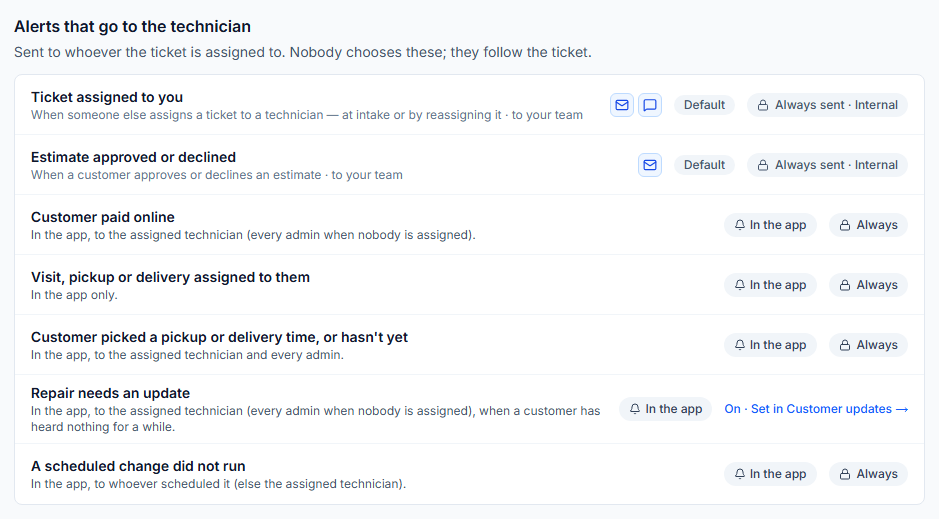
The alerts where your shop chooses who gets them — a new quote request or ticket, a customer reply on a ticket, a new online order — are at the top, each with who it goes to and a Who gets it page to change that. They used to sit at the bottom of the Communication Editor, which is now just your customer messages.
Below them, the page lists everything else your team is told: what always goes to the technician, what goes to admins, and the account emails staff get. The ones with no switch say how they arrive and who gets them, so the page is the whole picture.
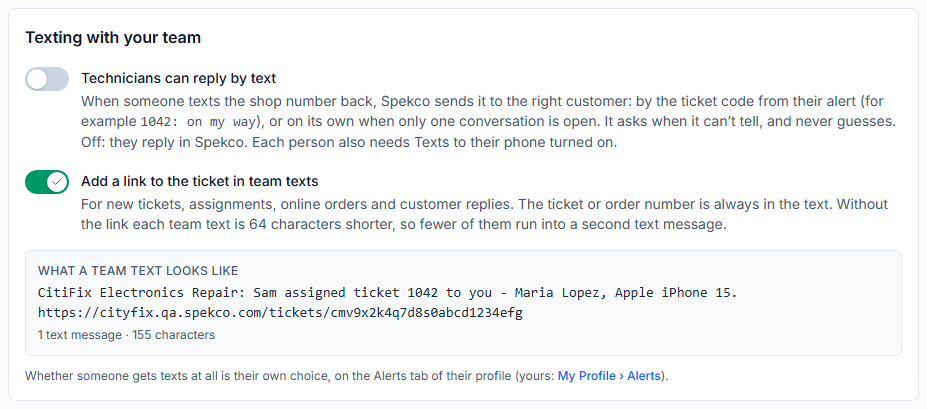
“Texting with your team” brings together the two shop-wide texting settings. Technicians can reply by text moved here from Settings → Integrations → Twilio. New: Add a link to the ticket in team texts. It’s on, as before; turn it off and team texts keep the ticket or order number but drop the link, which makes them shorter, so fewer run into a second text message. A live preview shows a team text and how many messages it costs.
At the bottom, Who gets what shows each person and what they get. The in-app notification for a new online order or a new website ticket now also reaches the people on that alert’s list, not only admins, and order texts to your team now start with your shop’s name.
What you need to do
Nothing. Your lists and switches are as they were; they’re just in one place now. The help article “How your team is alerted” ends with a checklist for “why didn’t someone get a text?”.
Settings → Tickets → General → Pickup hand-off
Paid repairs get a proper hand-over: a quick check, a signature, a receipt
Customers who pay at the counter already sign at the POS. Customers who paid at drop-off or online had no hand-over at all. Turn on the pickup hand-off, and a paid ticket at Ready for Pickup shows a green bar with Hand over to customer. It’s for repairs the customer collects; mail-ins and repairs you deliver back work as before.
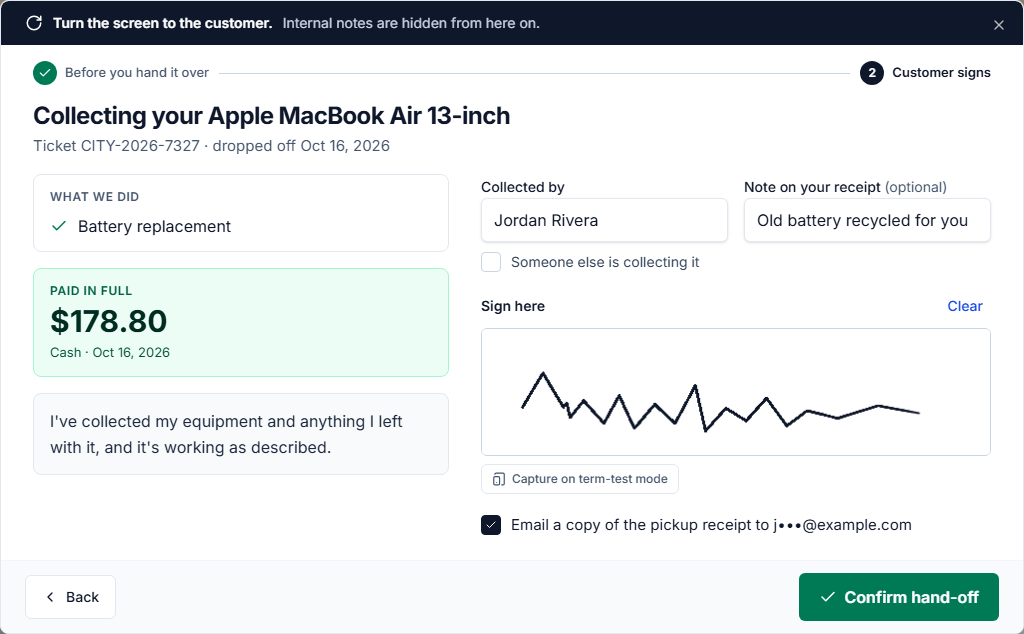
It’s one pop-up in two steps. First your team ticks your own checklist, like “Charger returned”, and can leave a note only staff see. Then you turn the screen to the customer: what was done, what they paid, the words they’re agreeing to (yours, set in Settings), and a box to sign. On a laptop it all fits on one screen.
The ticket then shows Collected with the date and time, the signature is kept with the ticket, and the pickup receipt is in the ticket’s Print menu. If the customer has an email address, the receipt can be emailed to them as they leave.
Choose Offer or Required. With Offer, staff can still complete a paid ticket the old way. With Required, a paid ticket can only be completed through the hand-off. Anyone who can edit tickets can hand over, technicians included.

What you need to do
It’s off until you turn it on in Settings → Tickets → General → Pickup hand-off. That’s also where you write your checklist and the words the customer agrees to, and choose whether the receipt email starts ticked.
Tickets → Paid, not collected
Every repair that’s paid but still on your shelf, in one list
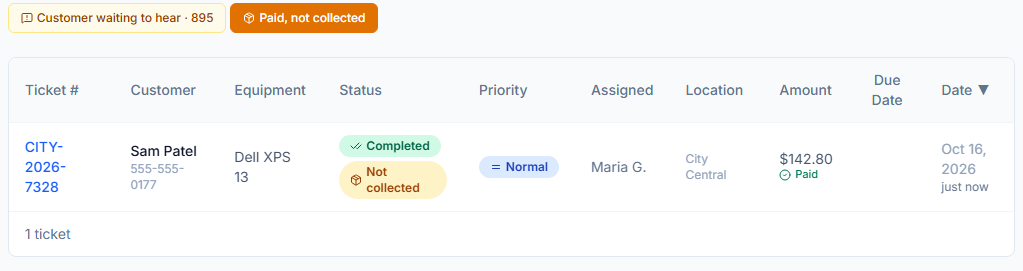
A repair the customer pays for away from the counter while it’s ready, online or by invoice, completes when the money arrives, as it always has. With the hand-off on, it also shows Not collected, and the new Paid, not collected filter on the Tickets list shows every one, whoever it’s assigned to. Hand it over when the customer comes in and it drops off the list.
Your review request and any post-repair follow-up now wait until the customer actually has their repair: they go out at the hand-over, or, for a repair you deliver, when you mark the delivery made.
What you need to do
Nothing beyond turning the hand-off on. Waiting for a delivery to be marked made already applies to every shop.
Analytics → Financial → Export CSV
Every line of your finance export says which order or ticket it came from
The finance export used to open with Spekco’s name. It now opens with your shop’s, the name in your settings, and so does the copy your scheduled finance emails attach.
Each row is now one payment, refund or taxed sale, with its order number and ticket number in their own columns, instead of one total per day and payment type. A repair paid at the counter shows both. Your bookkeeper can trace any line back to the order or ticket behind it.
The totals haven’t moved: each payment type still adds up to the End of Day Report, and the tax rows add up to the sales tax shown beside the Export CSV button.
What you need to do
Nothing. If your bookkeeper has a spreadsheet built around the old layout, tell them the columns are now date, category, tender, order_number, ticket_number, amount and location.