
Four things that change how the day runs
This is the first Spekco release note, and there will be one whenever we ship something that changes your day.
We have been shipping fast and saying nothing about it, which means you have been paying for things you do not know exist. That stops now.
Four things landed in September. Here is what each one does, and where to find it.
Settings → Communications
See every email your shop sends. Change the ones you don't like.
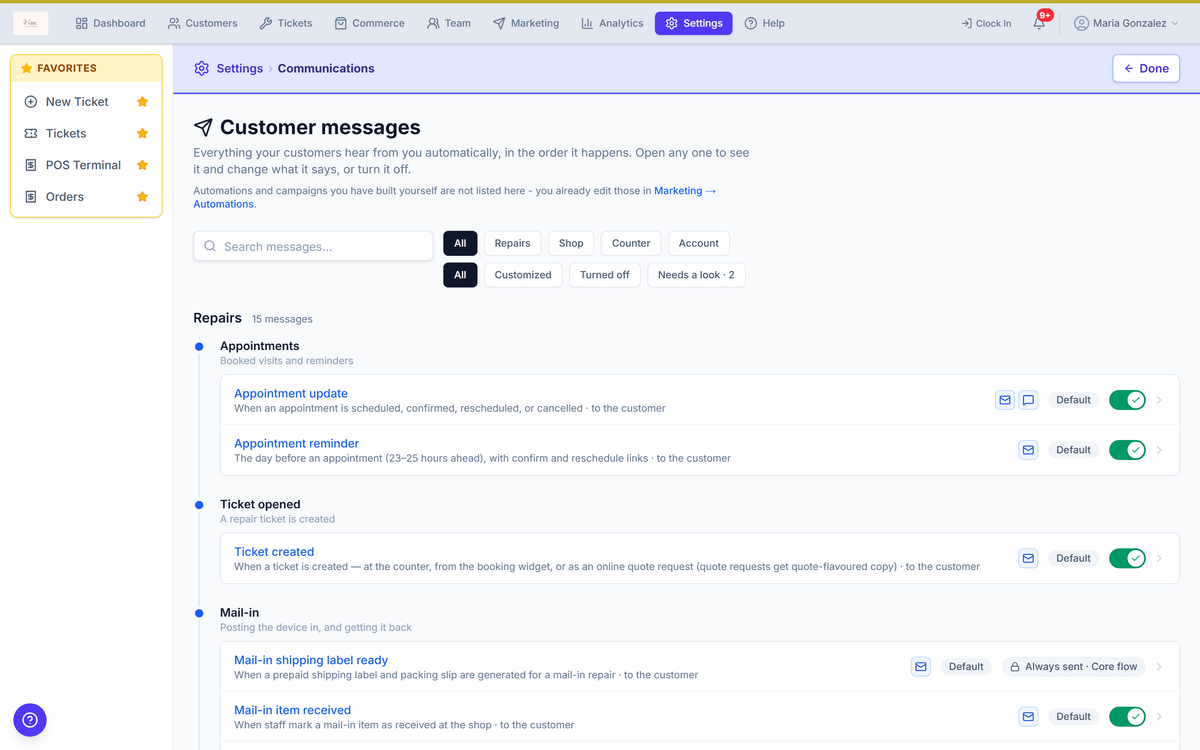
Settings → Communications lays out what Spekco sends your customers and when — ticket created, status changed, estimate ready, invoice, receipt — with a switch and an editor beside each one.
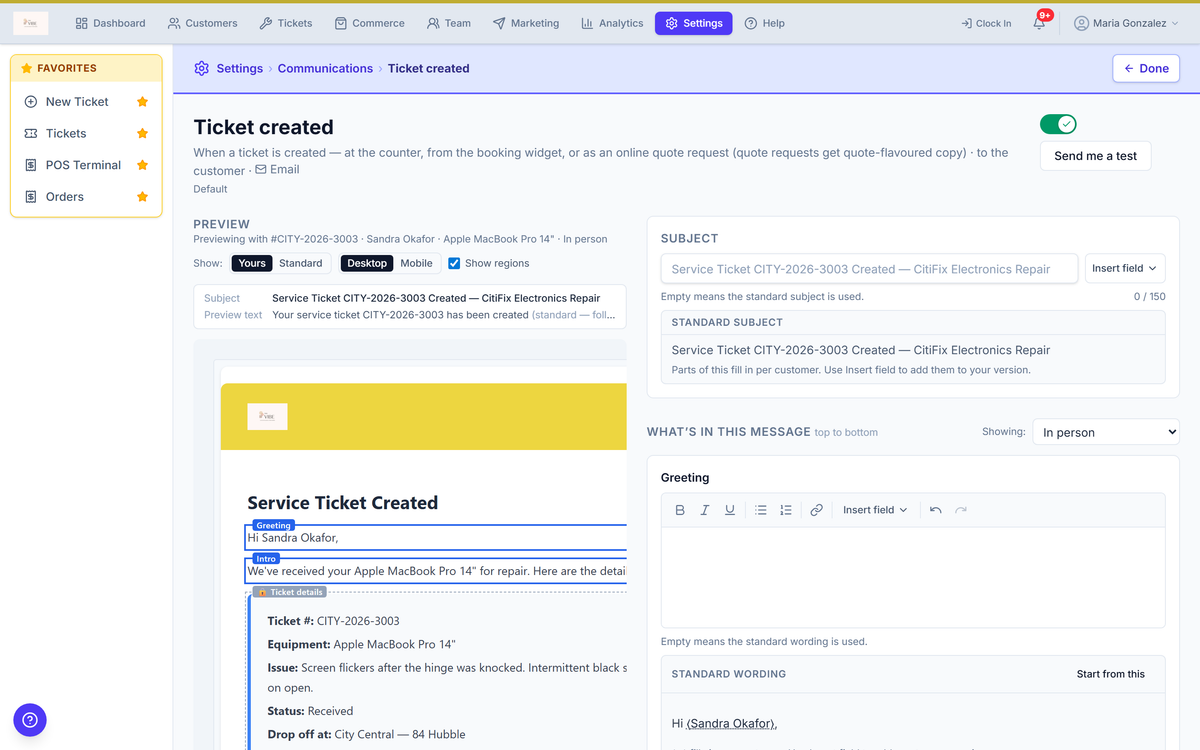
Turn off the ones you never wanted. Reword the ones you keep, in your own voice. Drop the customer's name or ticket number into your wording where you need it. There is a preview, so you see the result before a customer does.
Invoices, receipts and account-security emails stay on by design: they are the money and legal record, and a shop without one is worse off than a shop with an extra email.
What you need to do
Nothing. Every message still reads exactly as it did before — the defaults have not changed. Five minutes with the list is worth it anyway.
Settings → Printing → Label designer
Design the label that goes on the device
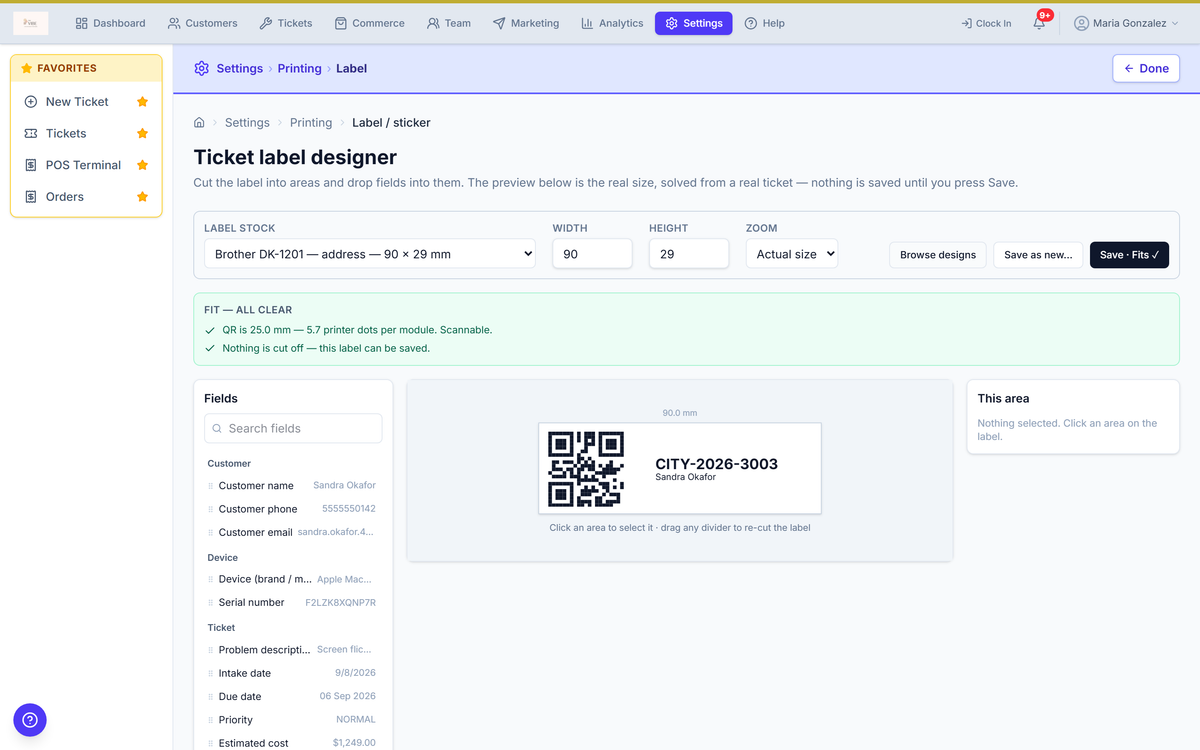
The ticket label is yours to lay out. Start from one of the ready-made designs, then set what each line prints — customer name, ticket number, device, a QR code — and watch it redraw at the true size of your stock, so what is on screen is what comes off the printer.
New this month: any line can print its field name alongside the value, so a serial number and an IMEI are not two anonymous strings on the same sticker.
What you need to do
Nothing. Your labels print as they always have. Open the designer when you want to change one.
Customers → Edit → Contact information
Two people on one repair, one bill to the office
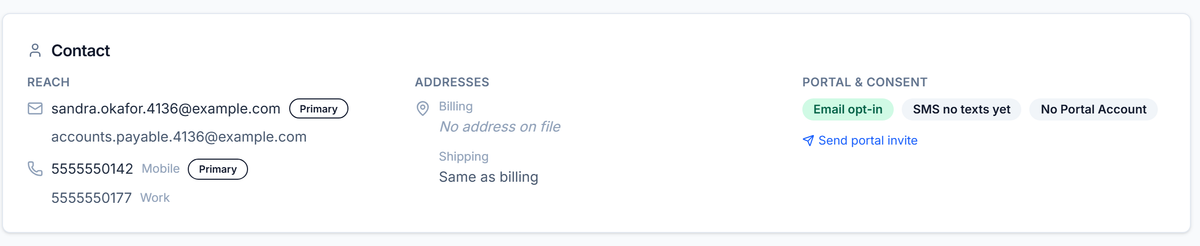
A customer record holds more than one email address now, and you choose who gets what at the moment you send.
On a ticket, “Also keep updated” adds the daughter who dropped the laptop off — she gets status updates, messages and estimate approvals, and nothing else. On an invoice or a receipt, “Also send to” copies one more address, which is how a corporate account gets its bill to accounts payable.
Everyone receives their own email, addressed to them. Nobody is cc'd on a stranger.
What you need to do
Nothing to switch on. Add a second address to the customers who need one.
New ticket → Parts · Ticket → Parts Used
Take money off a part without rebuilding the ticket
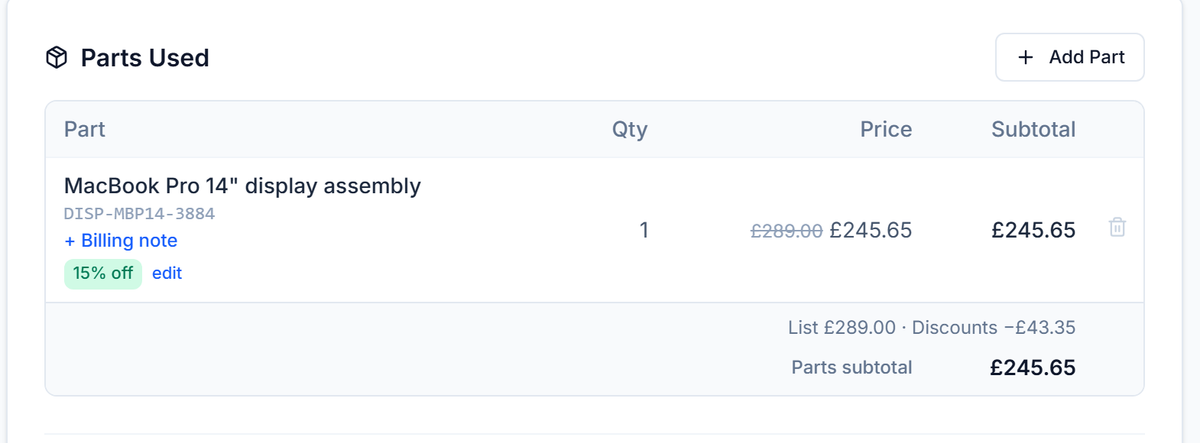
Add a part, click “+ Discount”, and take a percentage or a flat amount per unit off that one line.
The net price then flows everywhere it should — the ticket, the invoice, the emailed PDF, the estimate your customer approves, the counter receipt — each one showing the list price and the discount underneath, so nobody has to explain the arithmetic across the counter. Tax is worked out on the discounted price.
It uses the same permission as overriding an estimate, so it is not open to every login by default.
What you need to do
Nothing. “+ Discount” is already sitting next to “+ Billing note”.