
Repair Knowledge Base: Searchable Repair History and Procedures for Your Shop
The first thing to say about a repair shop is that it has almost certainly fixed this before. Somebody did, eighteen months ago, and either they are standing next to you or that knowledge walked out of the door with them. Everything here is aimed at the second case.
There are four parts to the Knowledge Base: searching what you have already fixed, writing down what fixed it without leaving the ticket, keeping the procedures that are not about any one repair, and seeing who is actually writing things down.
One more thing rides along at the end, and it is not new — review requests went live a fortnight ago and we never wrote them up. If you have been wondering whether Spekco can ask your customers for a review when a repair is finished, it can, and the last section says how.
Tickets → Knowledge Base
Searchable Repair History From Your Own Tickets
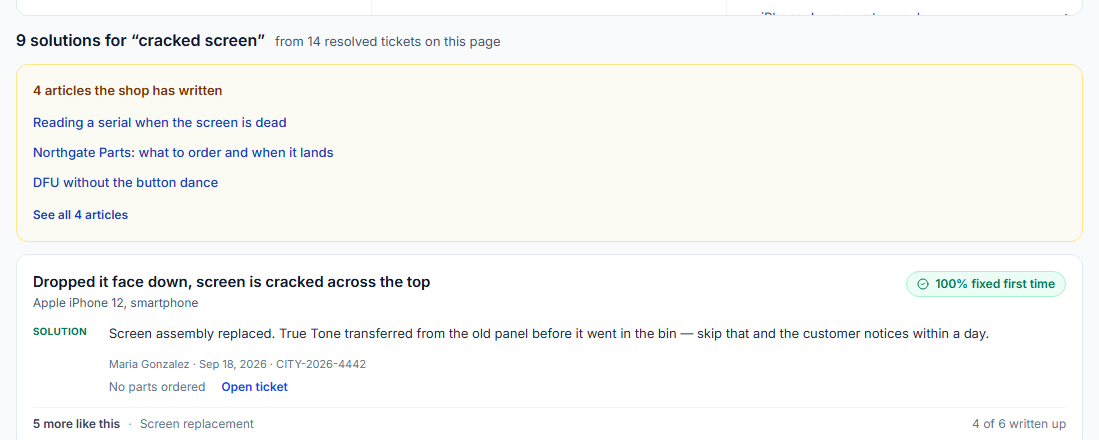
Describe the problem the way you would say it out loud — “won’t boot after a Windows update”, “iphone 12 screen” — and the Knowledge Base answers with your own past repairs. Equipment words are lifted out of what you typed and applied as filters, so “iphone 12 screen” looks for the screen problem on iPhone 12s rather than hunting for the words “iphone” and “12” in somebody’s write-up.
Results are grouped as SOLUTIONS, not as tickets. Twenty screen replacements on the same model are one card, with the write-up on it, the parts that were ordered, and how often that fix held first time. That last number is the one a tech mid-repair actually wants: a fix that worked nineteen times out of twenty reads differently from one that keeps coming back.
Everything is your shop’s own work. Nothing is shared between shops, and nothing a customer wrote is ever shown — their messages are searchable, so their words can find the repair, but the card shows what your staff wrote, not what the customer said.
You can browse instead of searching: equipment type, then brand, then model, straight off your own catalog. Useful when you know the machine and not the words. The three columns stay with you as you narrow, and whatever is filtering the list is spelled out above it — each filter removable on its own, or all of them at once, without throwing away what you typed.
What you need to do
Nothing. It fills itself in from the repairs you finish — see the next section for how.
The ticket screen → Knowledge Base · Activity
Repair Resolution Notes From the Ticket Screen
When a repair is finished, Spekco asks one question: what fixed it? A sentence is enough, and it is the sentence that answers somebody else’s search in a year. You can skip it, and you can set your shop to ask every time, ask with a skip, or never ask.
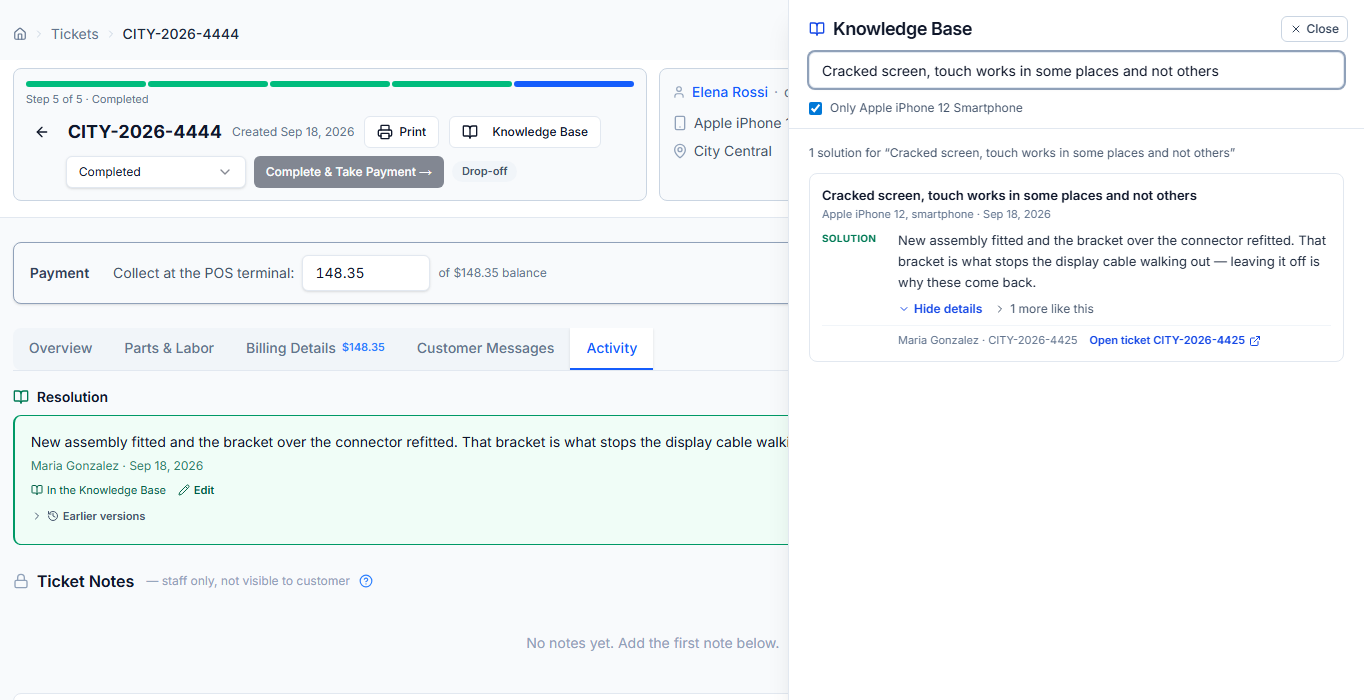
You do not have to wait for the end. Write the fix down on day one and it is searchable straight away, marked as still open so nobody mistakes an unfinished job for a proven one. Write-ups live on the ticket’s Activity tab, in green, and every edit is kept — anyone who can work a ticket can correct a write-up, and the earlier versions stay readable underneath with who replaced them and when.
While you are working, the Knowledge Base opens BESIDE the ticket rather than over it. Nothing dims, nothing locks, and you can read the reported fault, change the status and edit the write-up with the panel still open. It arrives prefilled with the problem on the ticket and the equipment as filters, and it leaves that ticket out of its own results.

What you need to do
Choose how hard to push: Settings → Tickets. “Ask every time” is the default, and you can require a write-up before a ticket can be finished.
Tickets → Knowledge Base → Articles
Knowledge Base Articles for Shop Procedures
Some of what a shop knows is not about any one repair: how you file an Apple warranty claim, which supplier to ring for a board, what the ESD setup at the bench is meant to look like. Articles are for those.
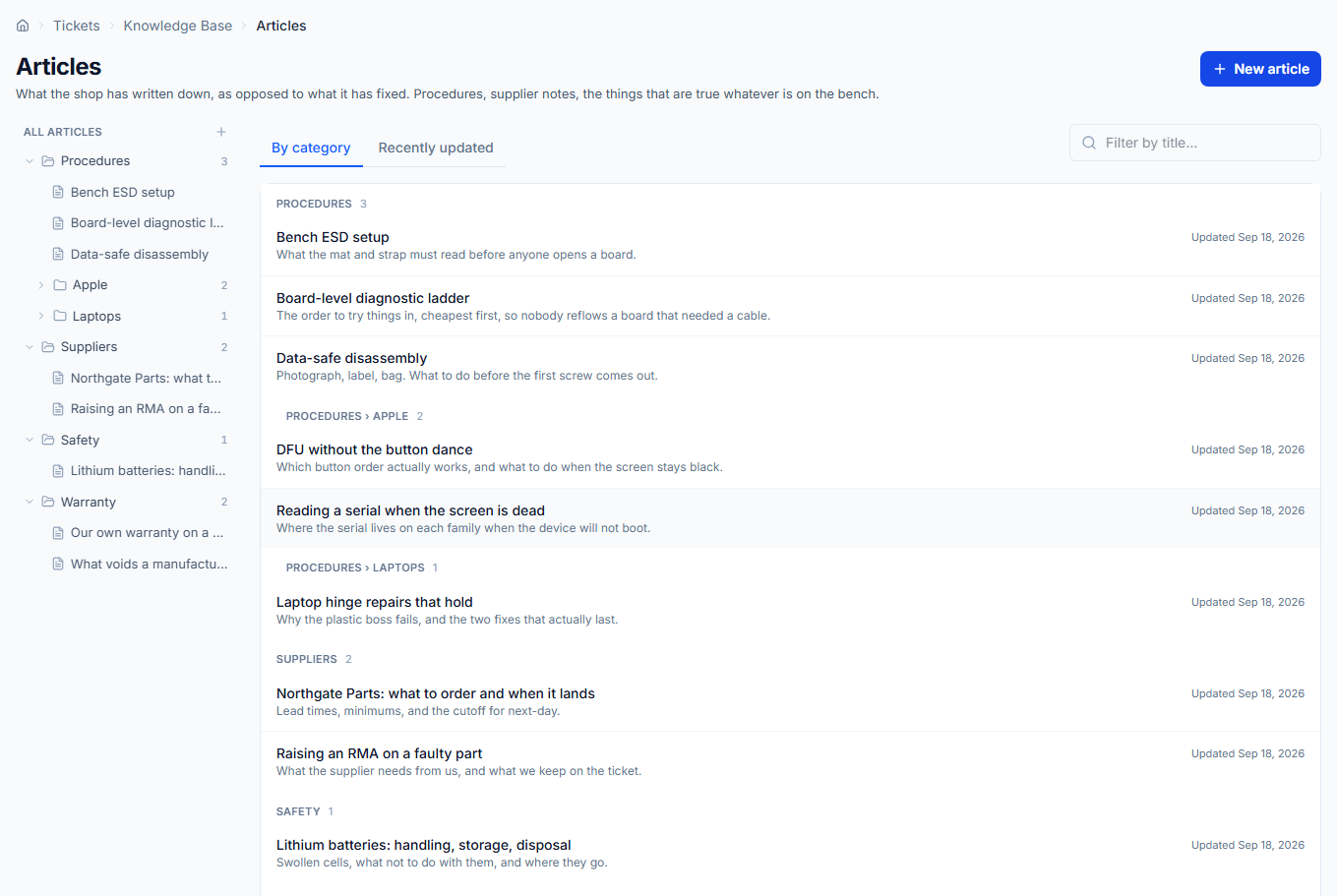
They are written the way you would write a blog post — headings, lists, bold, links — and filed into categories you name yourself, which nest as far as any shop will ever need. You can see the whole list on one page, which is the thing search cannot do for you, because searching means already knowing the words. Name a category wrong and you can rename it; the articles in it stay where they are.
The list answers the two questions people actually arrive with. “It is called something with BIOS” — type it in the filter and the list narrows as you type. “What has changed lately?” — the Recently updated view, which is ordered by when an article's words last changed, so confirming that an old procedure still holds does not shove it to the top as though it were news.
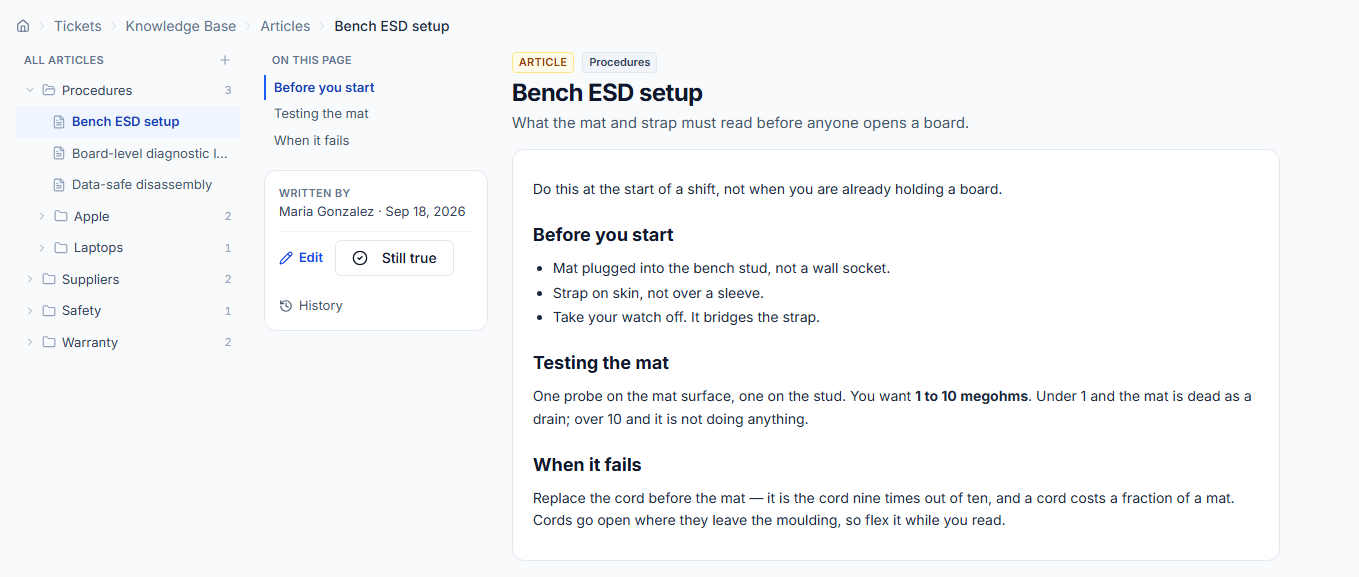
Every edit is kept here too, with who made it, and any version can be put back. Restoring is itself undoable, so nothing is ever truly lost. And because a procedure nobody has looked at in two years is worse than no procedure, an article can be marked as still true — one click, and your name and the date go on it.
Every line in the list says when somebody last stood behind it: “Confirmed” with a date if a person has vouched for it, “Updated” if it has only been edited. Anything untouched and unconfirmed for over a year says so in words, on the row — not as a warning, because your shop is the judge of whether a two-year-old procedure still holds, but because a list where the 2019 note and last week's look identical is a list you stop trusting.
Articles and repairs answer SEPARATELY. A search shows the repairs you have done and, alongside them, what the shop has written — because an article about a model would otherwise bury the repair that actually fixed this machine, and twenty near-identical repairs would bury the article.
What you need to do
Nothing until you want it. Add a category or two, then write the first one — the procedure you explain most often is usually the right place to start.
Tickets → Knowledge Base → Write-ups by tech
Technician Write-Up Report
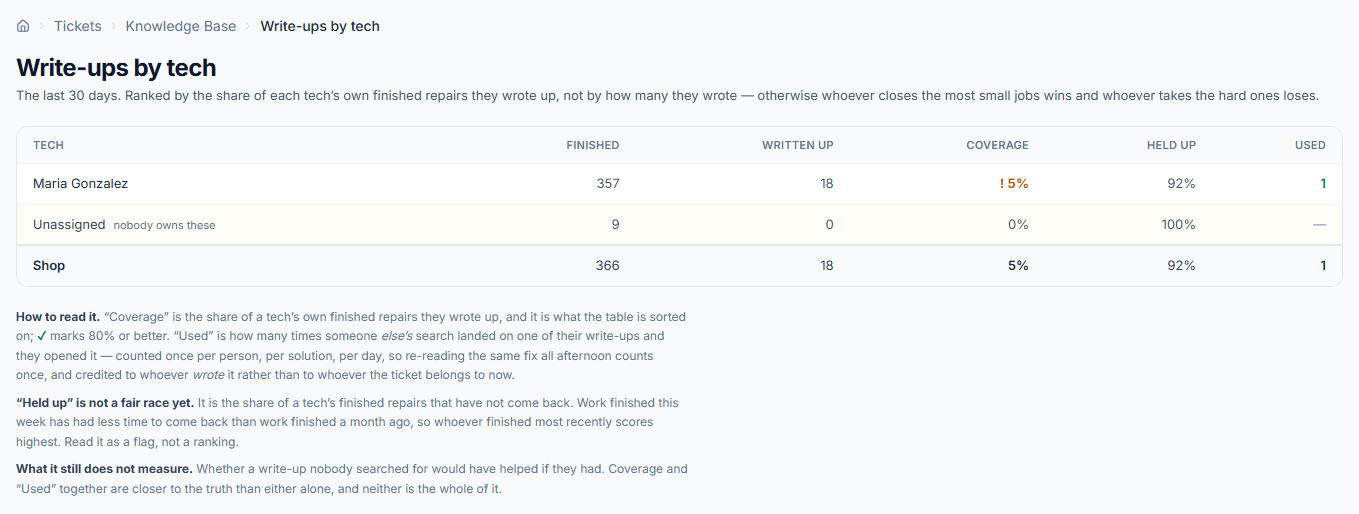
The last thirty days, per tech: how many repairs they finished, how many they wrote up, and what share that is. It is ranked on the SHARE, not the count — counting write-ups would put whoever closes the most small jobs on top and the tech who takes the three-day board repairs at the bottom, which is the opposite of what a table like this should say.
Beside it: how many of their fixes held, and how often somebody ELSE searched, found their write-up and opened it. The two are kept apart rather than blended into one score, because a tech who writes up everything and whose fixes keep coming back is a different story from one who writes up everything that stayed fixed.
That last column starts empty for everyone, and the page says so rather than letting a row of dashes read as an accusation. It only counts from the day it was switched on, and only when somebody searches and opens a result — so an empty column means the search is not being used yet, not that the write-ups are no good.
Learn more: Repair Shop Reports and Technician Productivity →
What you need to do
Nothing. It fills in as repairs finish. The “completed without a write-up” link beside it is the list worth acting on.
Settings → Integrations → Reviews · Settings → Communications → Reviews
Customer Review Requests When a Repair Is Finished
A finished repair is the moment a happy customer is most likely to say so. Spekco can now hand that moment to whichever service you already use, or send the ask itself.
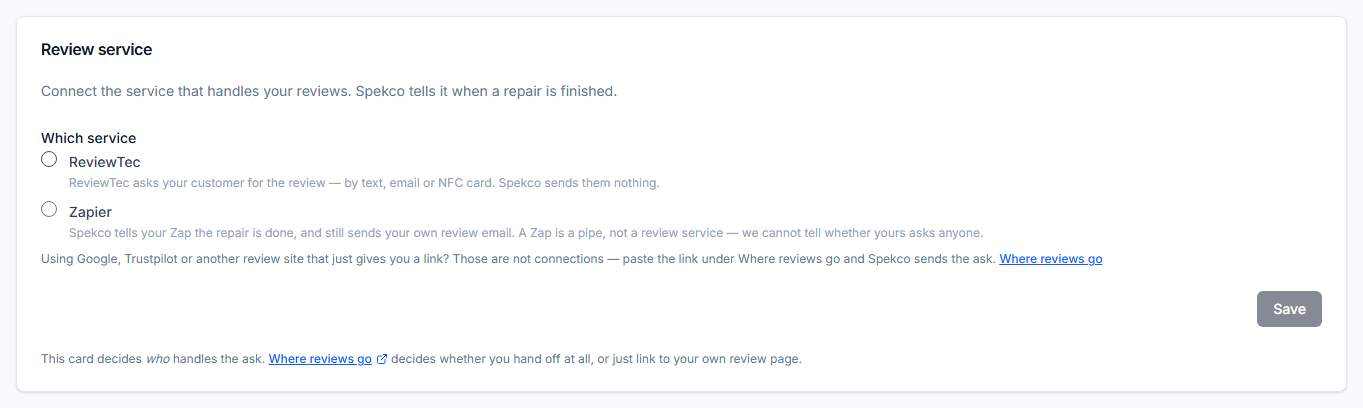
Under Settings → Integrations → Reviews you connect the service that handles your reviews. ReviewTec takes it from there — it asks your customer by text, email or NFC card, and Spekco sends them nothing itself, so nobody gets asked twice. Zapier is the other option: Spekco tells your Zap the repair is done and still sends your own review email, because a Zap is a pipe rather than a review service and we cannot tell whether yours asks anybody.
Using Google, Trustpilot or anything else that just gives you a link? That is not a connection — paste the link under Where reviews go, and Spekco sends the ask with your link in it.
Where reviews go decides WHETHER and WHEN; the Integrations card decides WHO. You can send the ask the moment a repair is finished or a set number of days later, which is usually the better answer — a customer who has had the machine back for a week has something to say about it.
One ask, ever. The ordinary “your repair is finished” email carries no review pitch: the review request is its own message, it is the only thing that asks, and a customer who has unsubscribed from marketing still gets their repair updates.
What you need to do
Nothing until you want it — it is off until you connect something. If you only have a review link, you do not need this card at all: paste the link under Settings → Communications → Reviews.