
Repair ticket software that tracks every job from check-in to pickup
Repair ticket software and repair tracking in one ticketing system, with a status for every stage, technician assignment and automatic customer updates.
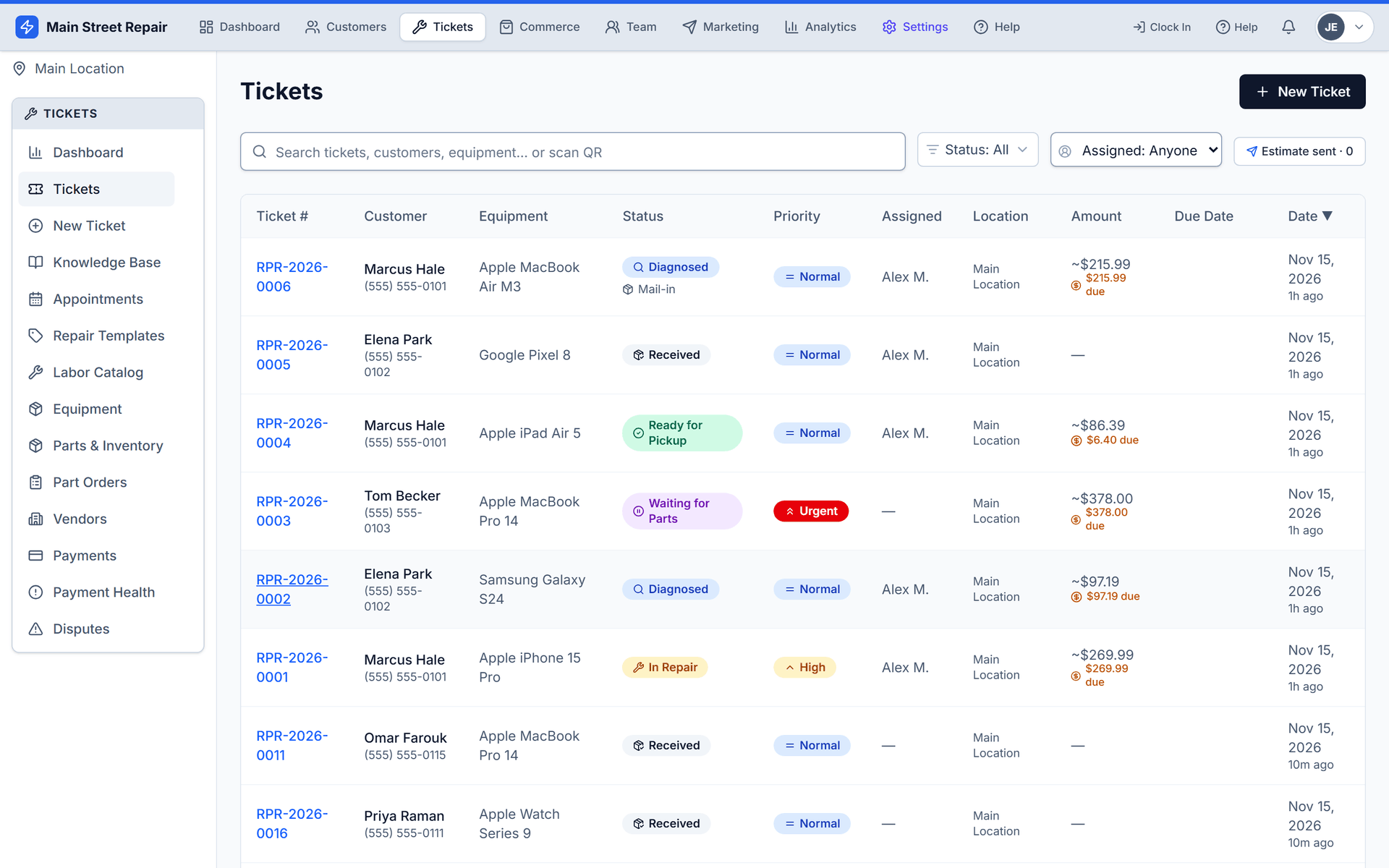
What's included in Repair Tickets
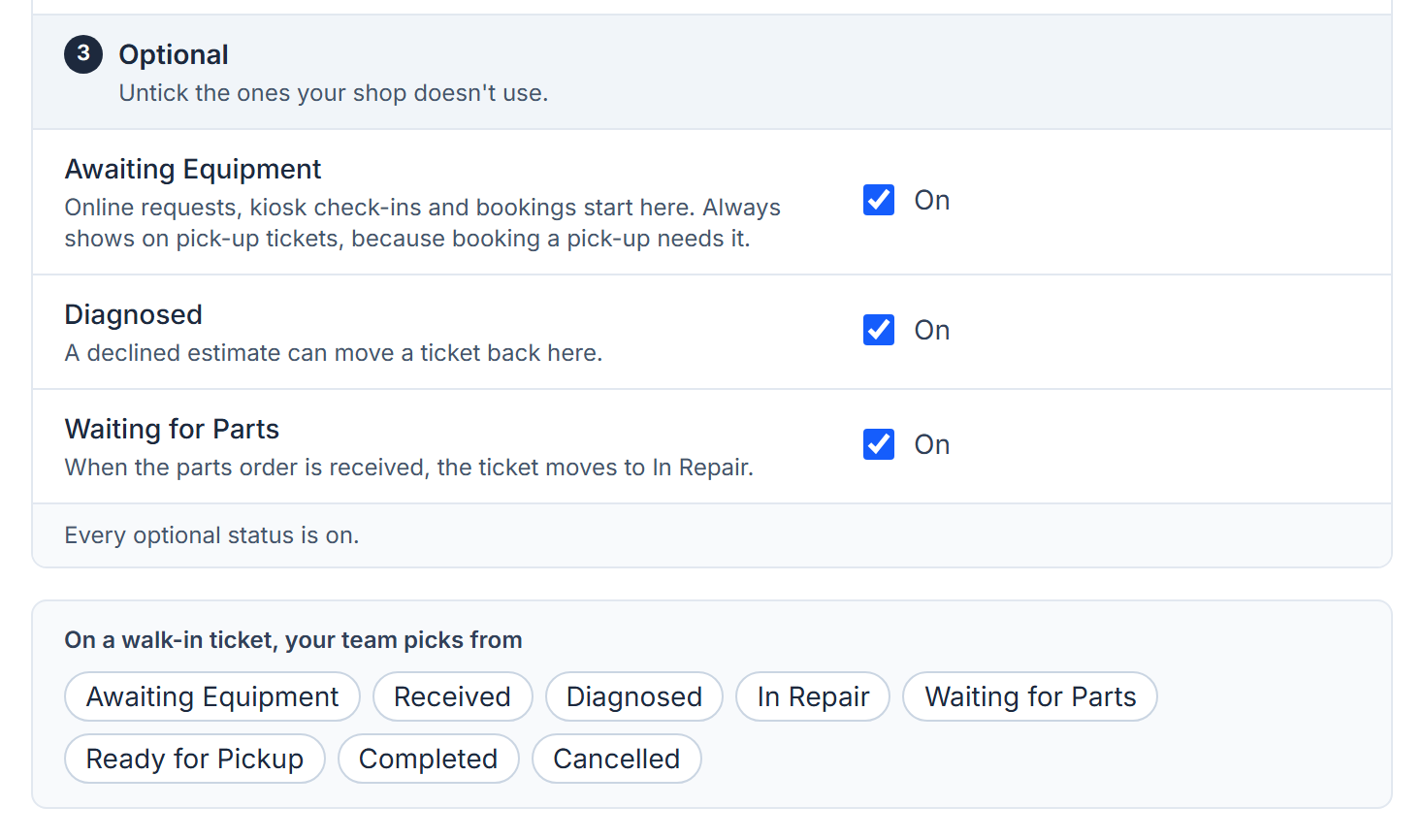
Ticket statuses
Each ticket moves through clear stages: Received, Diagnosed, Waiting for Parts, In Repair, Ready for Pickup and Completed. Turn off the optional ones your shop does not use.
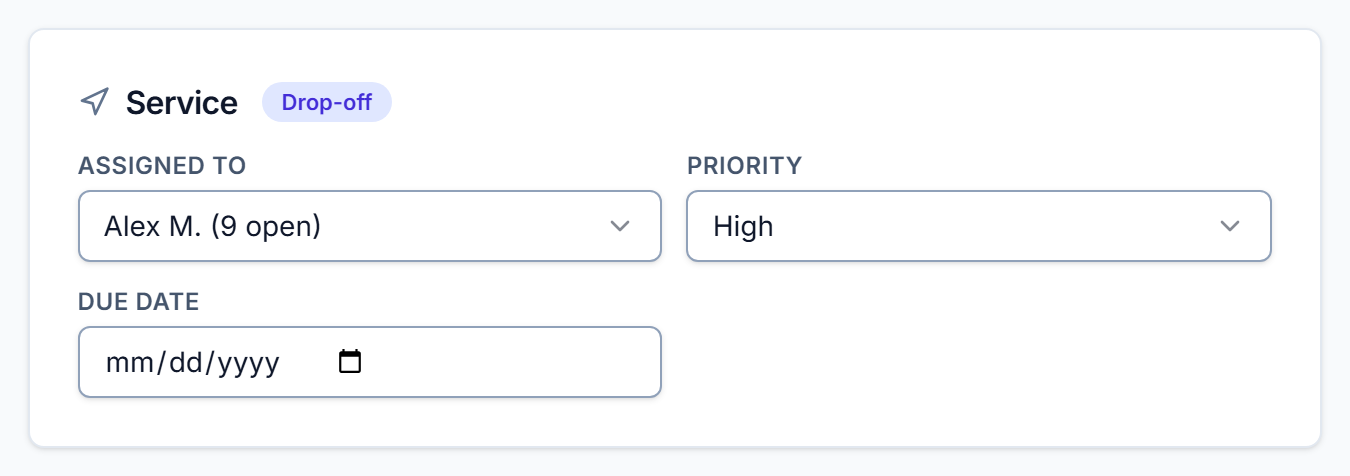
Technician assignment
Assign each ticket to a technician and see who is working on what.
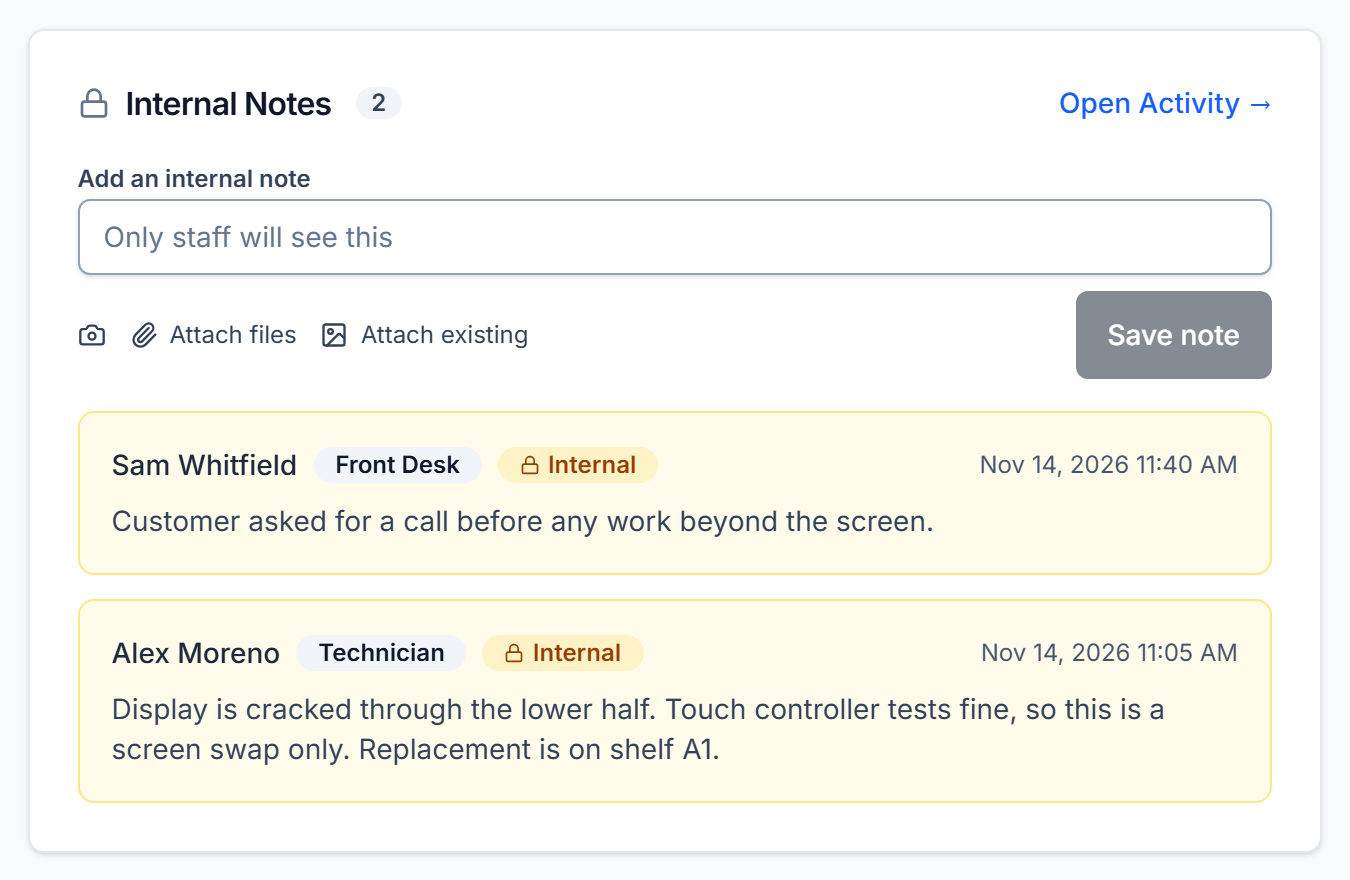
Photos & notes
Add check-in photos, notes for your team and updates the customer can see. The ticket keeps a timeline of all of it.
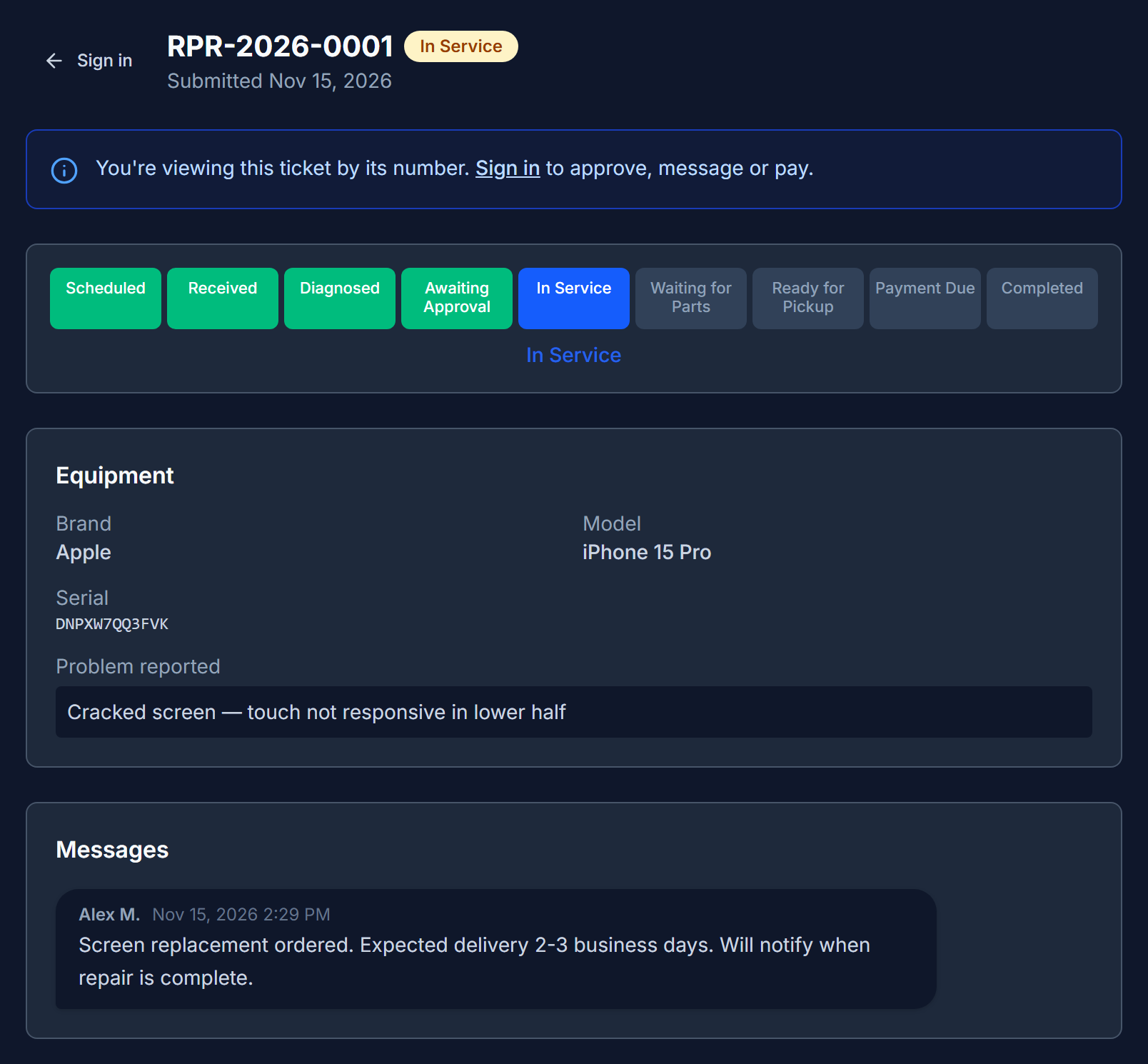
Repair tracking for the customer
The customer is emailed when the repair's status changes, and texted if you use texting, and can check it in the portal at any time.
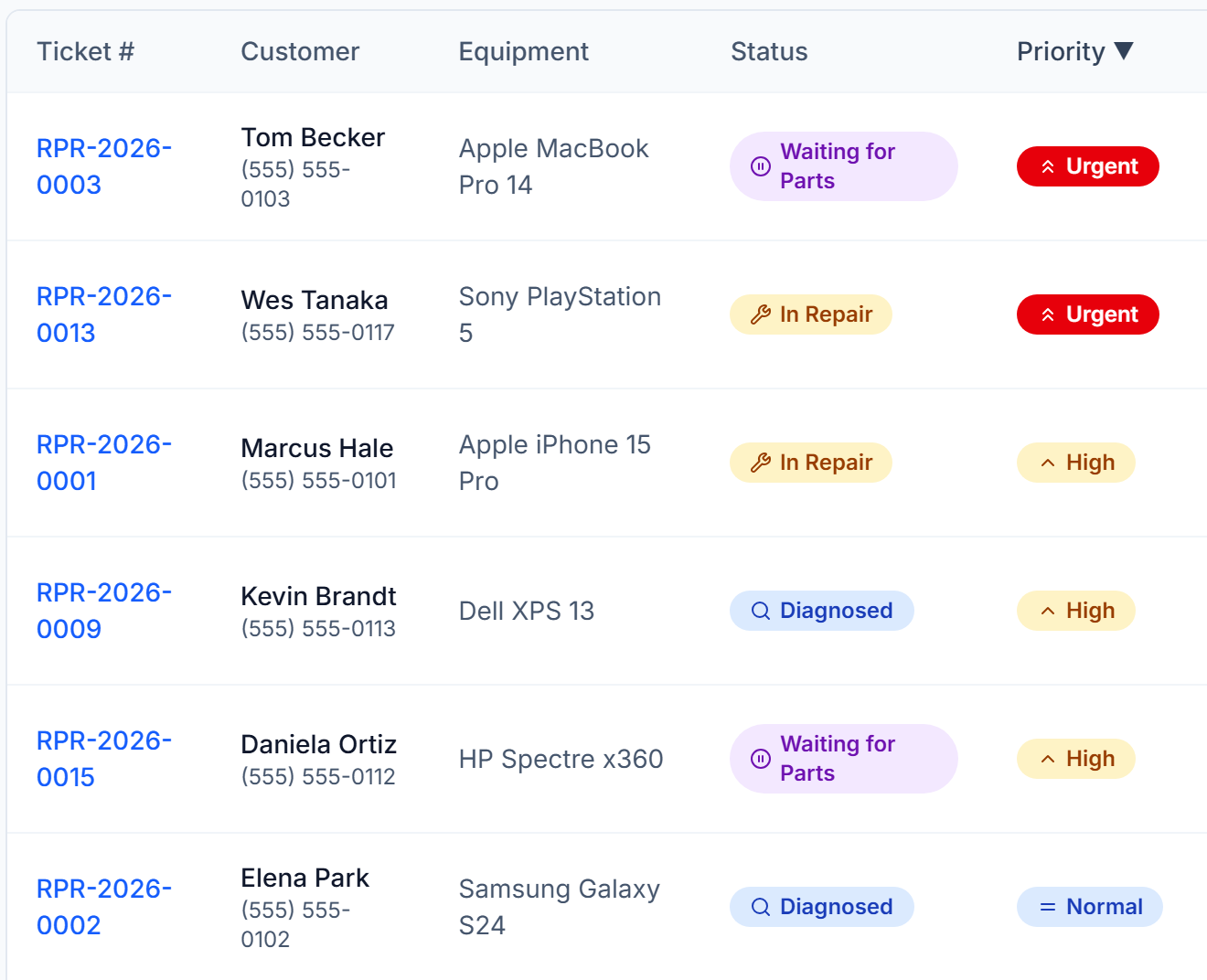
Priority levels
Flag rush jobs and sort the queue by priority, so the front desk sees what needs attention first.
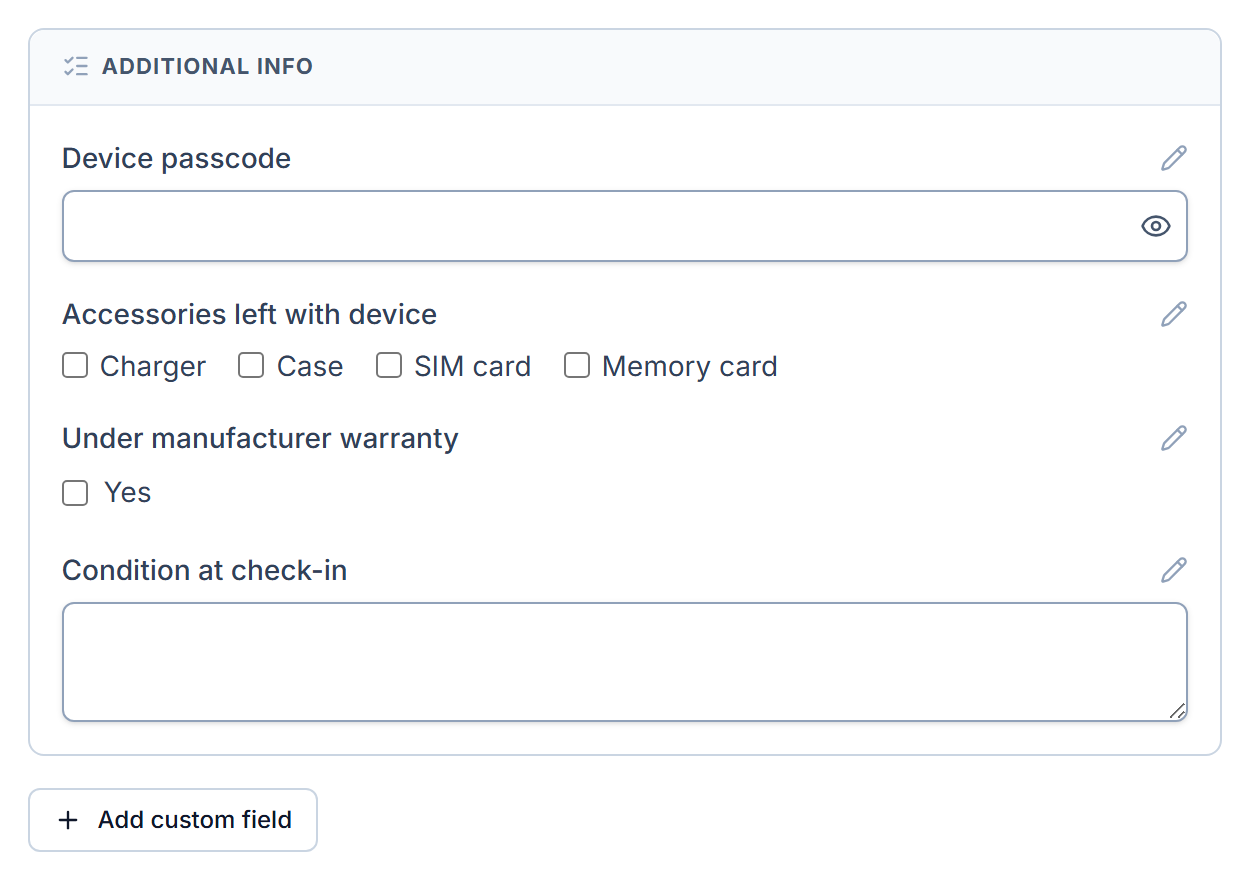
Custom fields
Add device serial numbers, warranty info, passcodes, or any field your shop needs to capture at intake.
How a repair ticket runs in Spekco
One job, from the counter to the register. The ticket is the record of the repair, and it also sends the customer their updates.
Step 1
Check the item in
Find the customer or add a new one, enter the item and the problem, and add your intake notes. When you submit the ticket, the customer is emailed a confirmation with a link to follow the repair.
Step 2
Price the work
Add parts and labor and the estimate adds itself up, or type a price. A repair template fills in the checklist, parts and labor for a job you do often. If you want approval before work starts, the customer approves the estimate from the email in one click.
Step 3
Move it through the stages
Change the status as the work moves: Diagnosed, Waiting for Parts, In Repair, Ready for Pickup. Each change emails the customer, so nobody at the counter has to type an update. You choose which changes send a message.
Step 4
Take the payment
From the ticket, one button opens the register with the balance already in the sale, and the customer can buy a product in the same payment. Or email the invoice and they pay online from the link. A receipt follows when the payment clears.
Repair tracking that answers the customer for you
A customer who has left something with you wants to know one thing: where it stands. In Spekco the ticket answers. Each status change emails the customer, and their portal page shows the stage the repair has reached and the stages still to come.
On a long repair, Spekco can send a progress update by itself when the customer has heard nothing for the number of days you choose.
Text messages work the same way: add Spekco SMS on any plan, or connect your own Twilio account on Pro. Email updates have no per-message charge.
What your team sees on a ticket
A ticket has five tabs: Overview, Parts & Labor, Billing Details, Customer Messages and Activity. The messages Spekco sent on its own appear in the conversation, marked Sent automatically, so nobody sends the customer the same news twice.
Notes for your team are kept apart from messages to the customer. The Activity tab keeps an audit trail of every change and who made it.
The ticket list shows the whole shop, newest first, with filters for status, repair type and who each ticket is assigned to. A technician picks My Tickets to see only their own.
Questions about repair ticket software
- What is repair ticket software?
- A repair ticket is the record of one job: who the customer is, what they left, what is wrong, what it will cost and where the repair stands. Repair ticket software keeps those records in one place your whole team can search. In Spekco the ticket also emails the customer at each stage and carries its balance to the register.
- How many repair tickets can I create each month?
- Basic includes 25 tickets a month and Pro includes 250. Beyond that each ticket is $0.20, and nothing stops working. Enterprise has no limit.
- Can customers check their repair status without calling?
- Yes. They are emailed when the ticket is created and at each status change, and the customer portal shows the stage the repair has reached. The portal and the email updates are on every plan.
- Can I set my own ticket statuses?
- The stages are a fixed list that runs from Received to Completed. You turn off the optional ones your shop does not use, and you choose which status changes message the customer.
- Can I record a serial number or a passcode on the ticket?
- Yes. Add your own fields, such as a serial number, a passcode or the accessories left with the item, and they appear at check-in on every ticket.
- We still use paper tickets. Where do we start?
- Print the free repair ticket template: one page with a tear-off claim stub, and no sign-up. When paper stops keeping up, the same details go on a Spekco ticket. Every plan has a 30-day free trial.
Related features
Repair Shop POS System
Repair shop POS software: a point of sale that takes product sales and repair payments in one sale, with cash, card and end-of-day reconciliation.
Repair Shop Inventory Management
Parts come out of stock when a technician adds them to a repair ticket, with low-stock alerts, reorder suggestions and vendor records.
Repair Status Customer Portal
Customers check repair status, approve estimates and pay invoices online without calling your shop. On Pro, the portal adds booking and your online shop.
Try Spekco free for 30 days
No setup fees, and nothing is charged until day 30.