
Repair shop inventory management that counts parts as you use them
Parts come out of stock when a technician adds them to a repair ticket, with low-stock alerts, reorder suggestions and vendor records.
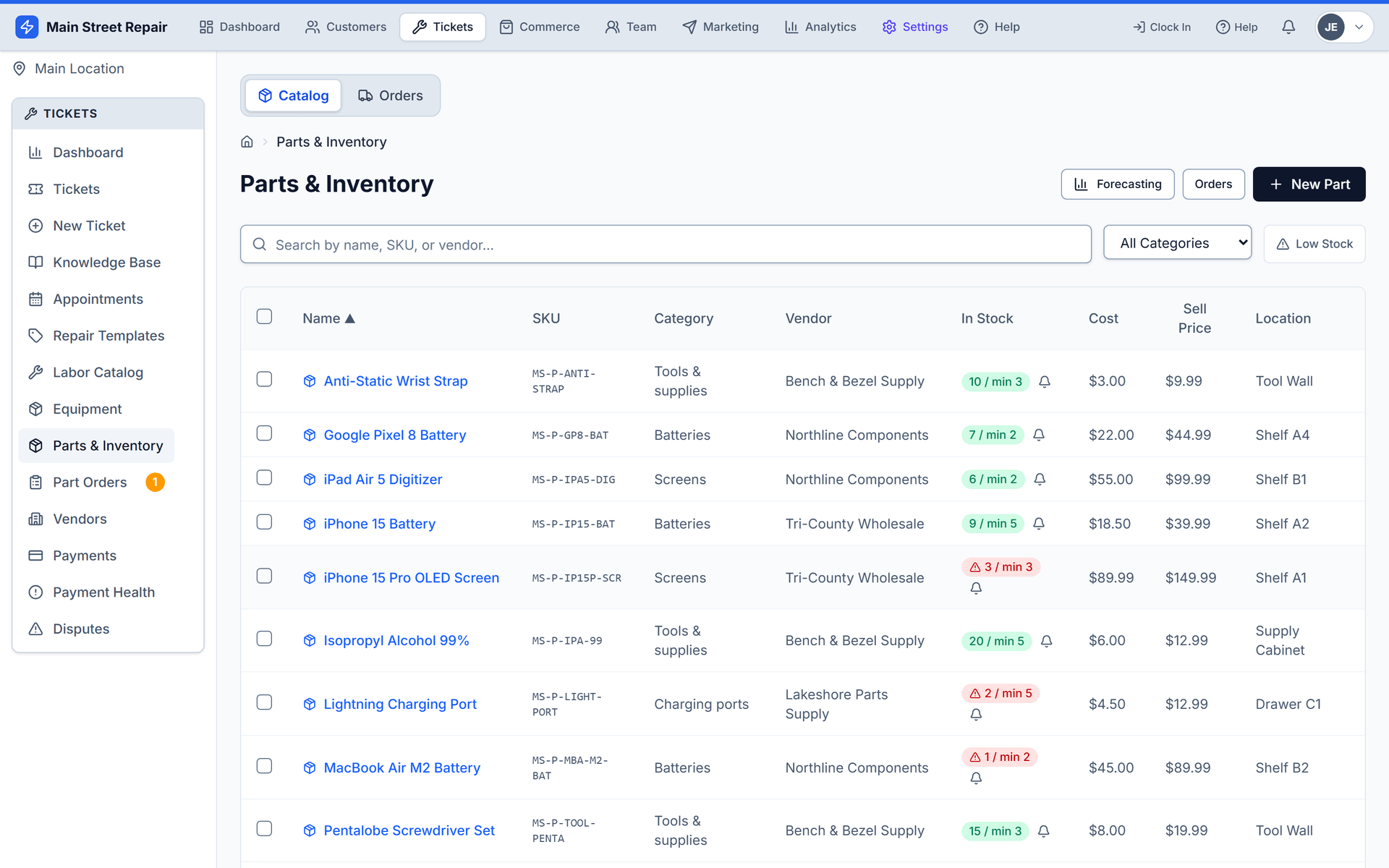
What's included in Parts & Inventory
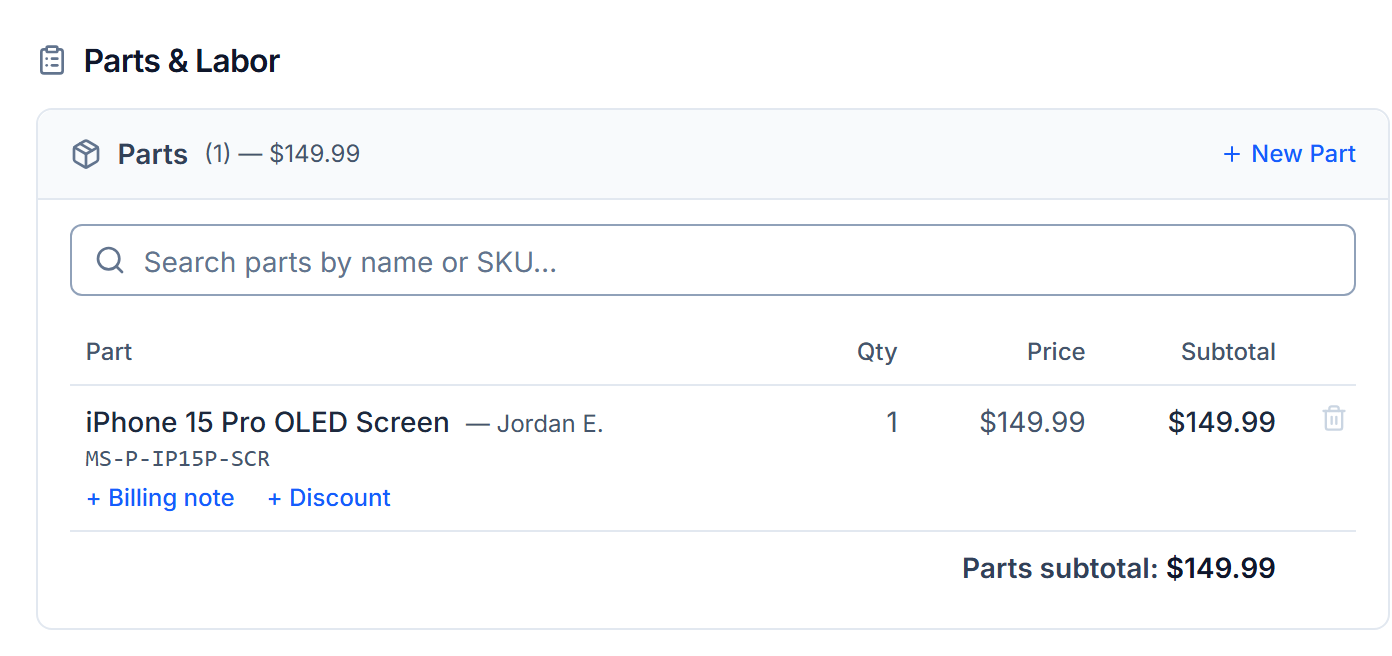
Parts counted from the ticket
When a technician adds a part to a ticket, it comes out of stock. Nobody adjusts the count by hand.
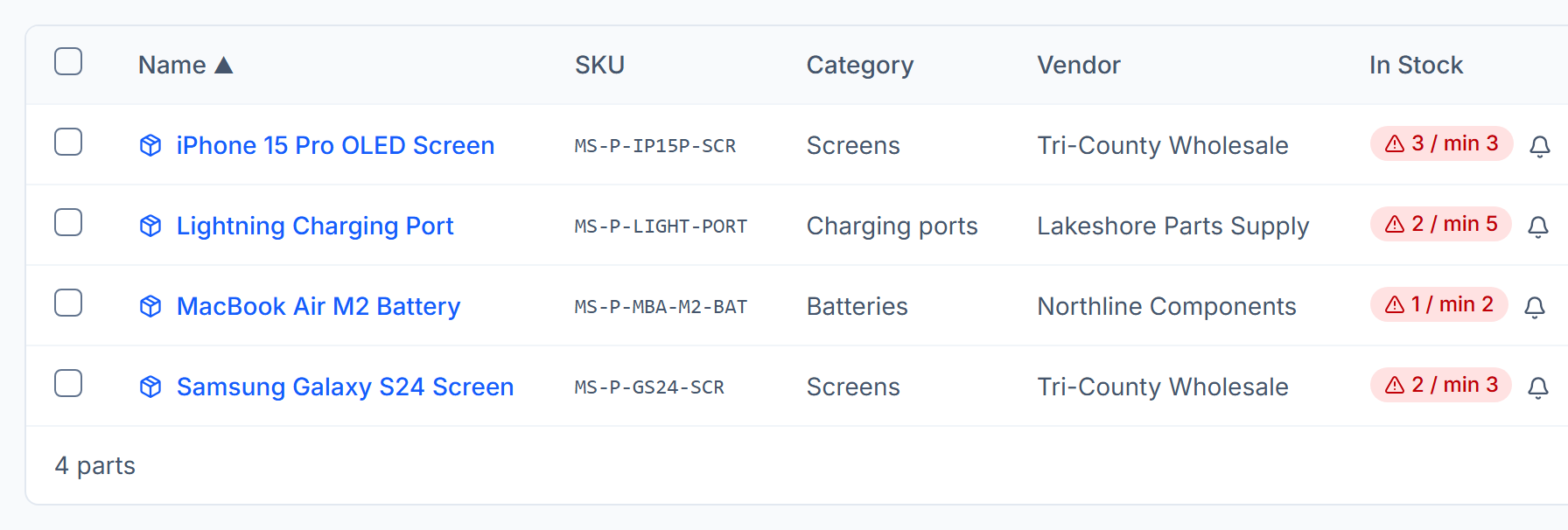
Low-stock alerts
Set a minimum for each part and get an alert when stock falls below it.
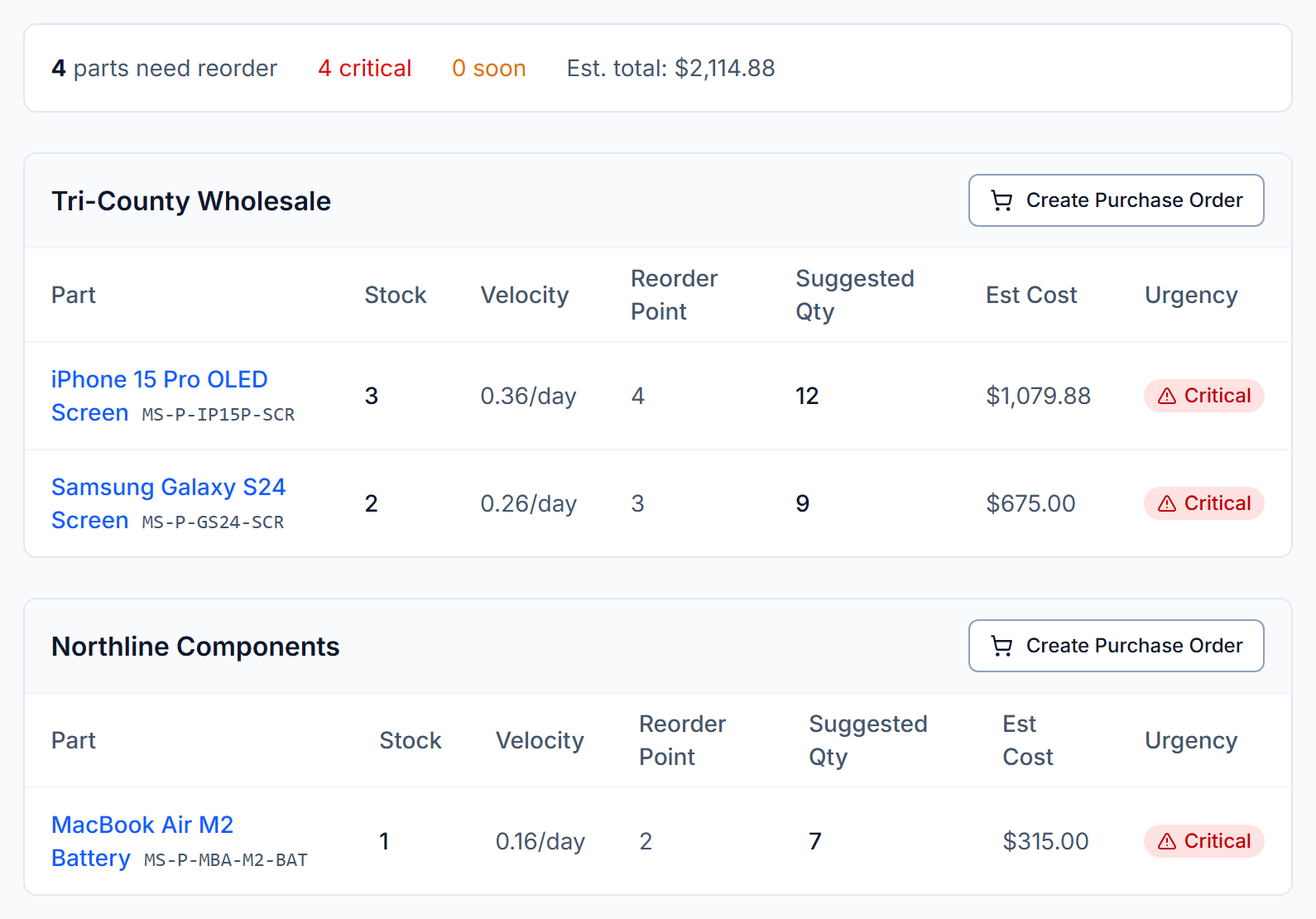
Reorder forecasting
See how fast each part is being used, the stock level to reorder at and a suggested quantity, grouped by supplier.
Vendor management
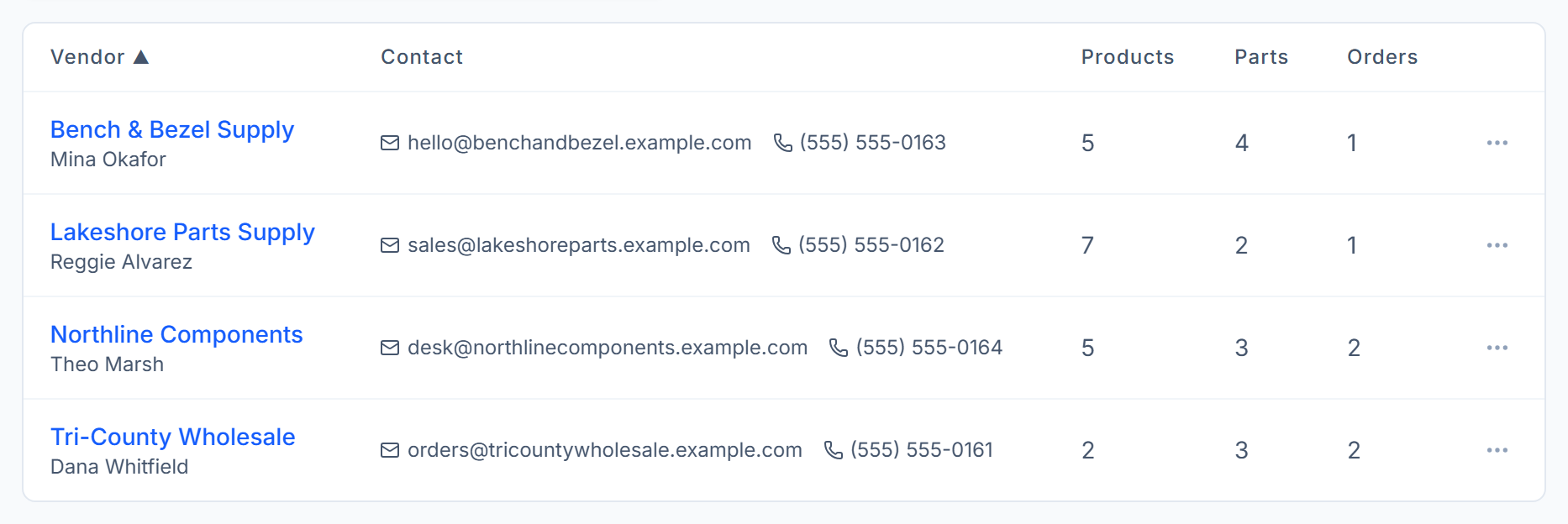
Keep each supplier's contact details, account number and payment terms, with a count of the parts and orders you have with them. Each part records its supplier, cost and lead time.
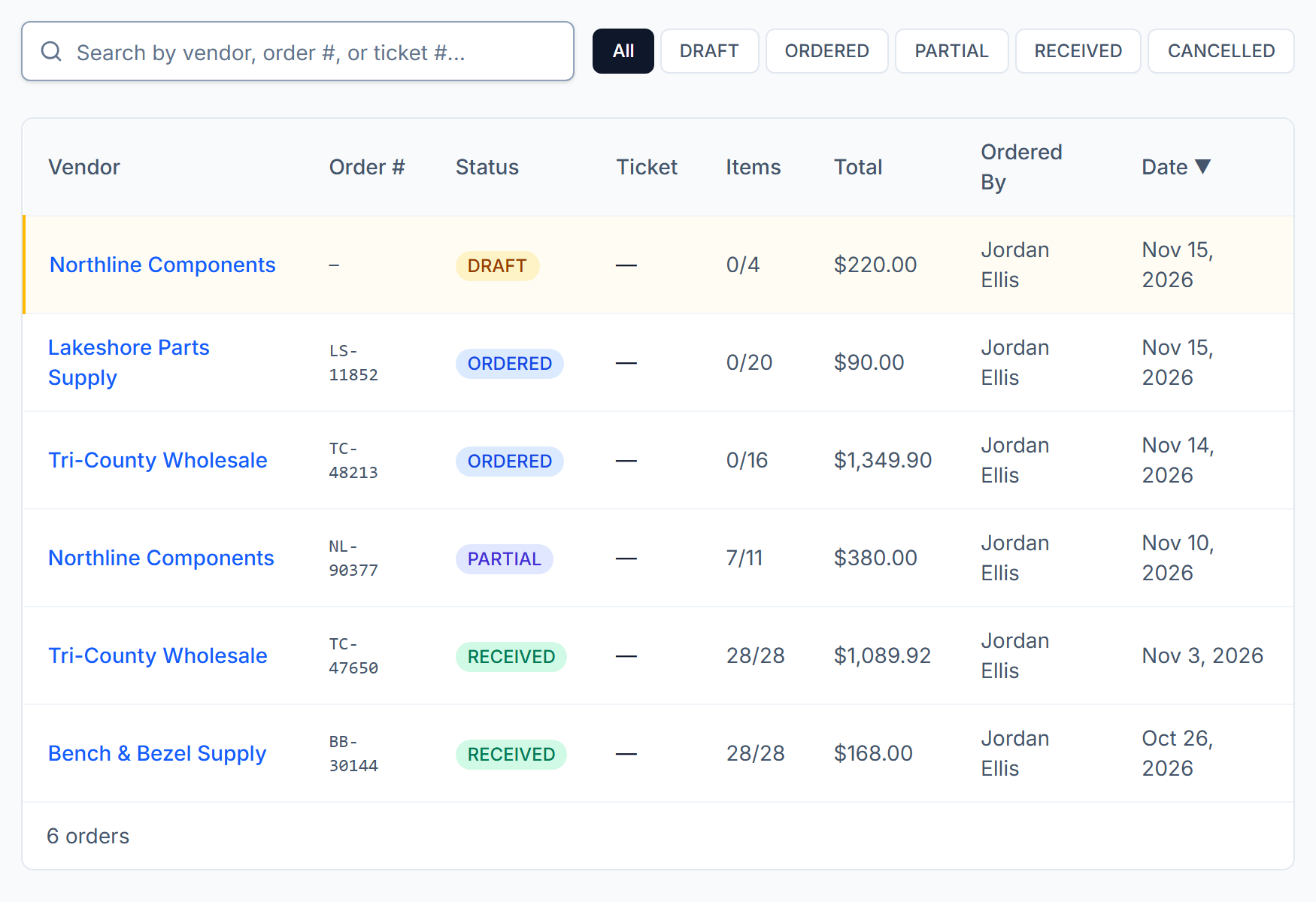
Part orders
Create and track part orders with line items, expected delivery dates, and automatic stock adjustment on receive.
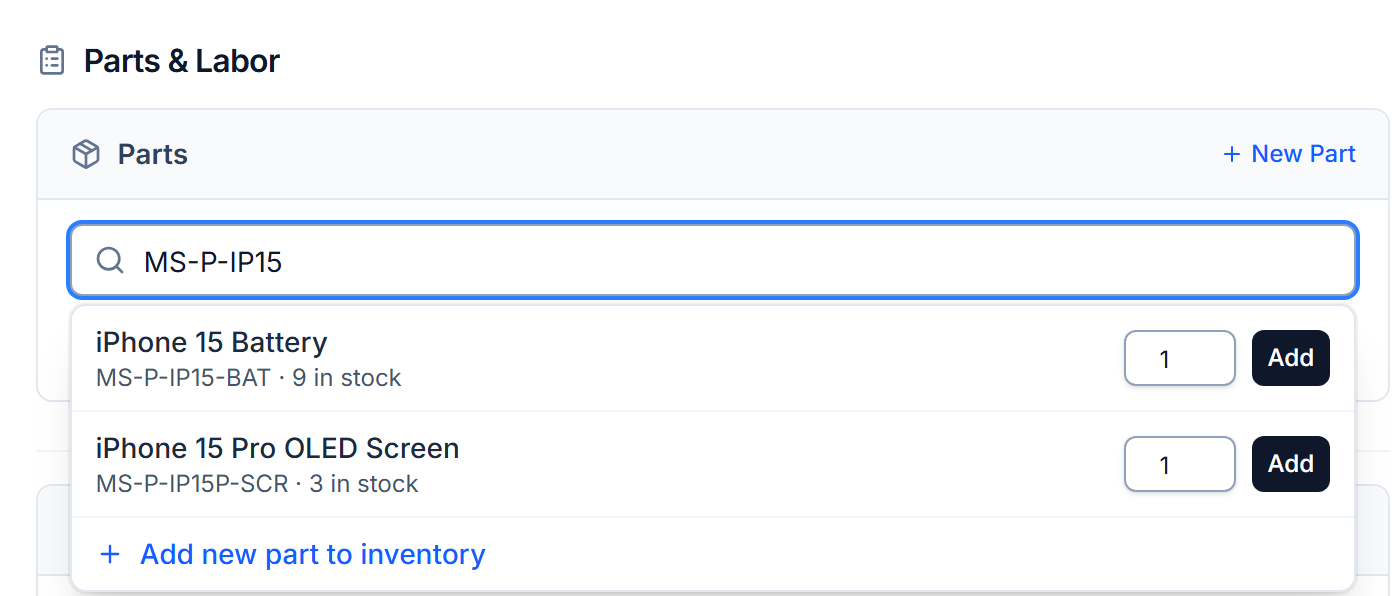
Barcode/SKU lookup
Search parts by SKU, name, or category. Fast lookup for technicians adding parts to tickets.
How a part moves through Spekco
From the supplier's box to the customer's repair, with the count kept for you.
Step 1
Add the part
Give it a name, a SKU, what you pay and what you charge, its supplier and how many you have. Set a minimum quantity if you want to be warned when it runs low.
Step 2
Use it on a repair
Add the part to a ticket and it comes out of stock. Take it off the ticket and it goes back. A part with none left shows as out of stock, and you can order it from the ticket.
Step 3
Reorder before you run out
Parts at or below their minimum show under Low Stock. Turn on the low-parts alert for the parts you cannot be without, and an email each morning lists the ones that are low.
Step 4
Receive the order
Create a part order for a supplier and follow it from draft to received. Receiving it adds the parts to stock, and a ticket that was waiting for one of them moves back to In Repair by itself.
One stock count for the bench and the counter
Parts are used in two places: on repairs, and over the counter. Spekco counts both. A part added to a ticket and a part sold at the register without a ticket come off the same count, and both count toward your reorder suggestions.
That is what having the register and the tickets in one system gives you. Nobody takes a sale out of one program and corrects the stock in another.
Reorder suggestions from what you use
The forecasting page shows how many of each part you use a day, when the current stock will run out at that rate, and whether use is going up or down. Reorder suggestions list what to order now, with a suggested quantity and the estimated cost.
If you like, Spekco puts low parts on a draft order each morning, one draft for each supplier. Nothing is sent to a supplier: you review the draft and mark it ordered.
Questions about repair shop inventory management
- Do I have to count stock by hand?
- Not day to day. Stock adjusts when a part goes on a ticket, comes off one, is sold at the register or arrives on a part order. You can still correct a count by hand from the part's page.
- How will I know a part is running low?
- Set a minimum quantity on the part. When stock falls to that number it shows under Low Stock and on your dashboard. For the parts you cannot run out of, turn on the low-parts alert and an email each morning lists the ones that are low.
- Does Spekco send orders to my suppliers?
- No. It prepares the order: a draft with the parts and quantities, one for each supplier. You review it, place the order with your supplier, and mark it ordered.
- What happens to a repair that is waiting for a part?
- Set the ticket to Waiting for Parts and the customer is told. When the part order is received, the ticket moves back to In Repair by itself.
- Can I sell parts over the counter?
- Yes. The register's search finds a part by name or SKU, with no ticket needed, and the part comes off your count when the sale is paid.
- Is inventory management on every plan?
- Parts and inventory are on every plan, including Basic.
Related features
Repair Ticket Software
Repair ticket software and repair tracking in one ticketing system, with a status for every stage, technician assignment and automatic customer updates.
Online Store for Repair Shops
Sell accessories, parts, refurbished devices and merchandise in your own online store, with categories, variants, promo codes and card checkout. On Pro.
Repair Shop Reports and Technician Productivity
Revenue, technician productivity, ticket volume and sales by channel for your repair shop. Basic reports are on every plan, advanced reports on Pro.
Try Spekco free for 30 days
No setup fees, and nothing is charged until day 30.