
Technician Productivity Reports and Skills-Based Ticket Assignment for Repair Shops
Two of these came from one phone call. An electronics repair shop asked two plain questions: when I assign a ticket, can I see who’s good with this equipment? And how many tickets did each technician close last month? Until now the first answer lived in someone’s head, and the closest thing to the second was an all-time top five.
Both answers are in Spekco now. Until you record a skill, your lists stay in the order they’re in today.
The third went live on October 28, and we never told you about it here. Spekco on a phone used to be a computer screen squeezed down, and now a ticket works the way a phone does.
My Profile → Skills · Team → Employees → a person → Skills
Technician Skills Tracking by Equipment Type and Brand
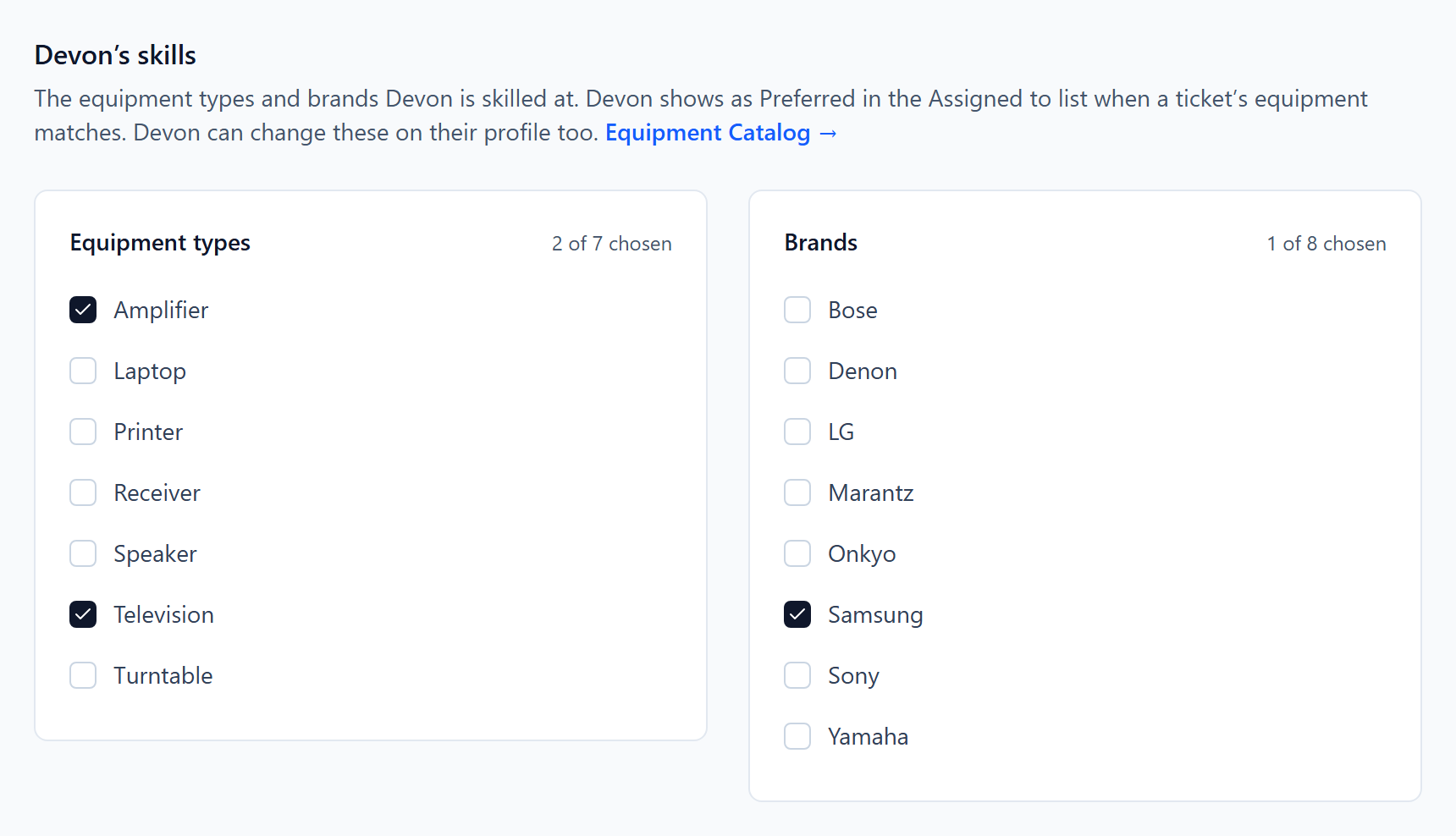
Every person has a new Skills tab. Tick the equipment types and brands they’re good with, and each tick saves as you make it. Technicians can do their own on My Profile, and anyone who manages your team can do it on the person’s page.
The lists come from your Equipment Catalog, so everyone chooses from the types and brands your tickets use. A brand has to be in the catalog before anyone can choose it.
What you need to do
Nothing until you want it. To start, tick skills for your team. If your Equipment Catalog has no brands yet, add them first.
New Ticket · a ticket’s Service card
Skills-Based Ticket Assignment: Skilled Technicians First
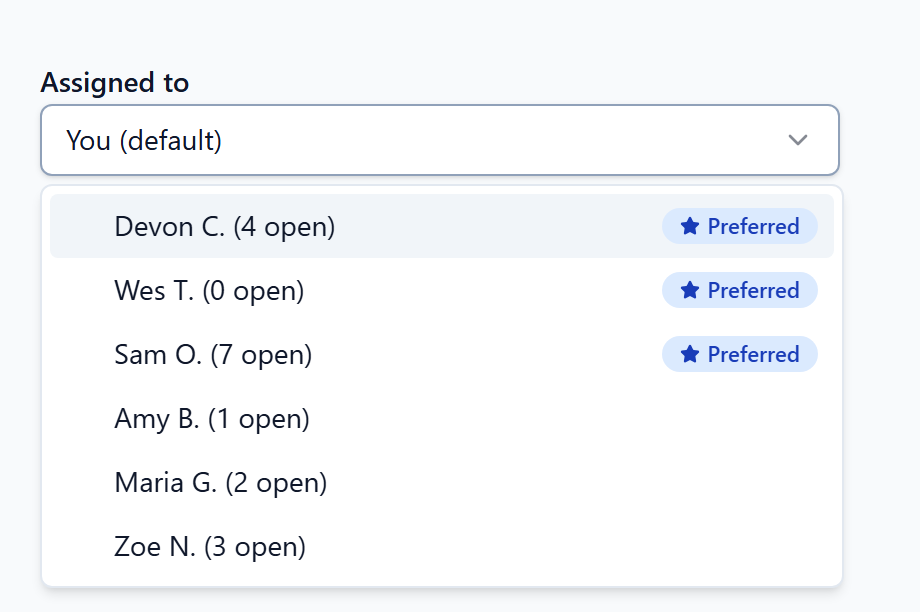
When a ticket has equipment on it, the people skilled at it move to the top of Assigned to, marked Preferred. Anyone matching both the type and the brand comes first, then anyone matching either, with fewest open tickets first. Everyone else follows in the usual order.
Nothing is hidden, and nothing is assigned for you. On New Ticket the list re-orders as you fill in the equipment, and whoever you’ve already picked stays picked.
The Technician on a dispatch visit and the Driver on a pickup or delivery work the same way, and every row in all of these lists now shows how many open tickets that person has. Someone with locations set is Preferred only for tickets at those locations.
A ticket matches by name. If a brand was typed by hand and spelled differently from your catalog, or you rename a catalog item later, older tickets won’t match it.
What you need to do
Nothing. Preferred appears as soon as skills are recorded.
Tickets → Dashboard · Analytics → Service
Technician Productivity Report: Tickets Completed by Period
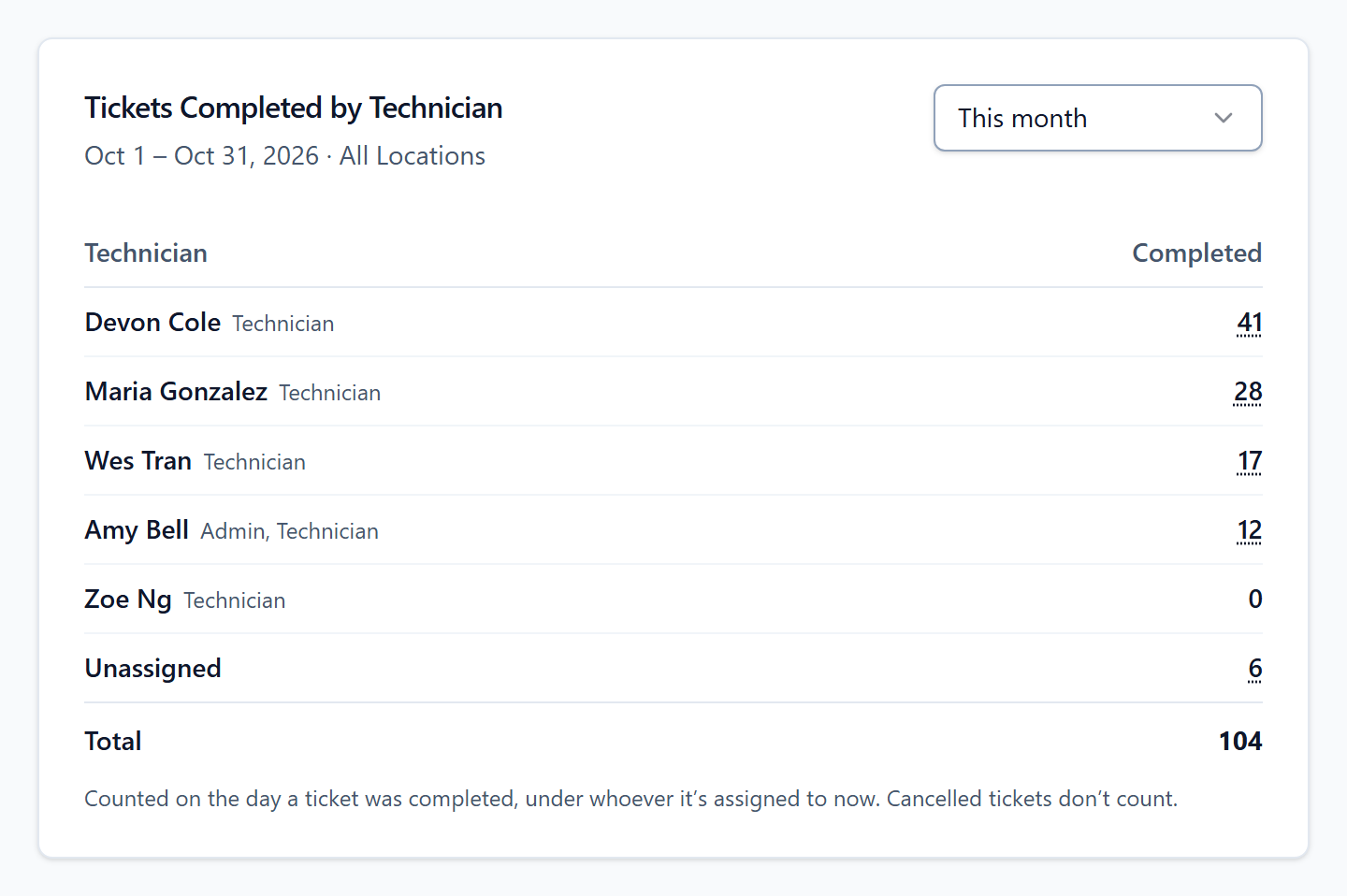
A new card, Tickets Completed by Technician, counts completed tickets per person. Choose This week, Last week, This month, Last month, This year or a custom range. The location picked at the top of the page applies, and the days are your store’s days. It replaces the all-time Top Technicians on this page.
Click a count and the Tickets list opens on exactly those tickets, with a chip showing the dates. Someone who completed nothing shows a 0, and tickets with nobody assigned have their own row, so the rows always add up to the total.
A ticket counts on the day it was completed, under whoever it’s assigned to now. Cancelled tickets don’t count. A ticket reopened and completed again counts on the later day, so a past period’s number can change. A ticket with no completion date isn’t in any period, and older tickets imported from another system often have none.
Learn more: Repair Shop Reports and Technician Productivity →
What you need to do
Nothing. Admins will find it there now.
On your phone: Tickets · any ticket
Mobile Repair Ticket Management: Tickets That Fit Your Phone
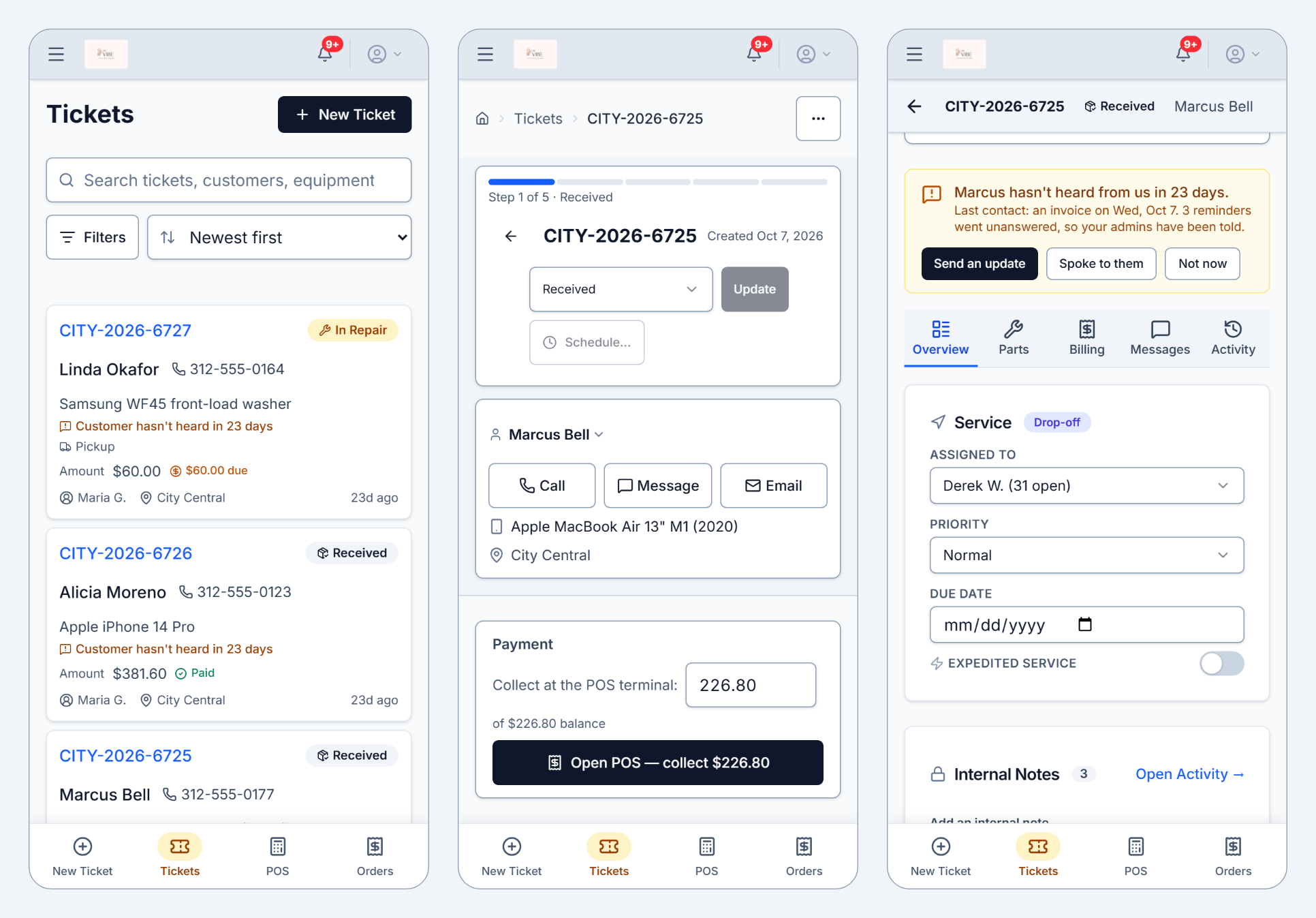
The Tickets list is now one card per ticket, with the number, status, customer, equipment, what’s owed and who has it. The search box is at the top, the filters sit behind one Filters button that shows how many are on, and Sort is a menu, so your first ticket is on the first screen.
On a ticket, the big header scrolls away and a slim bar stays at the top with the back arrow, the ticket number, its status and the customer, so you always know which ticket you’re in. Call, Message and Email are buttons right under the customer’s name. The five tabs fit side by side, and the page’s other actions, like Print and Knowledge Base, sit in one ⋯ menu.
Your favorites sit in a bar along the bottom, and the full menu opens from the button at the top. Fields are big enough that an iPhone no longer zooms in when you tap one, and pages don’t run off the side of the screen.
On a computer or tablet, tickets keep their layout. Two things you’ll notice everywhere: the latest customer messages and your internal notes now sit right under Service on the Overview, and the search box and the words on a ticket are darker and easier to read.
What you need to do
Nothing. Open Spekco on your phone.