
Schedule a status change, and know which customers are waiting to hear
Two things a shop does all day are harder than they should be: telling the customer at the right moment, and remembering which customers have not been told anything at all. This release is about both.
The first is scheduling. A repair is often done before you want to say so — an expedited job finished in two hours, or a pickup you would rather hand over on Thursday morning. Now the ticket can wait for you, and the customer hears at the time you picked.
The second is the customer who has gone quiet: a ticket that has sat in Waiting for Parts for a week while nobody has said a word. Spekco now notices that for you, tells the right person, and makes the next step one click.
The ticket screen → Status → Schedule…
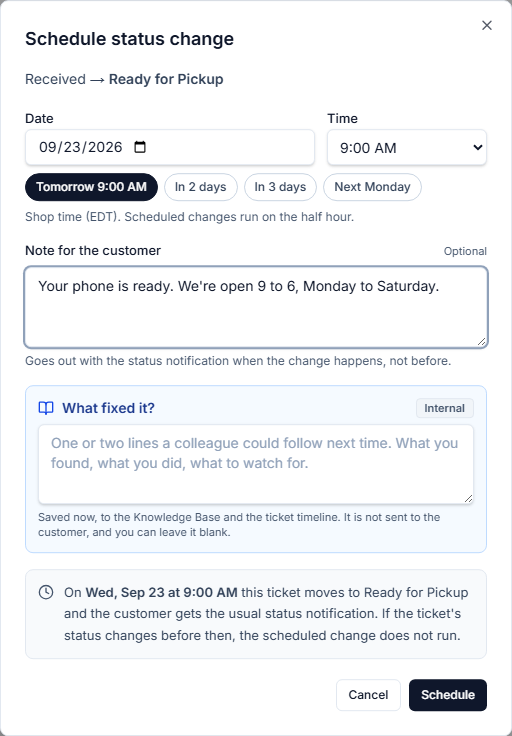
Finish now, tell the customer later
Choose the new status as usual, then press Schedule… instead of Update. Pick the day and the time — your shop’s own clock for that ticket’s location, in half-hour steps, up to 60 days ahead — or one of the quick picks, such as tomorrow at 9:00 AM. A note for the customer can ride along; it stays hidden until the change happens, and goes out with the usual status email and text at that moment, not before.
A chip under the status shows what is planned and when, with Edit and Cancel, and the Tickets list shows the same line under the status — so nobody mistakes the status on screen for the whole story.
Plans change, and the schedule keeps up. Changing the status by hand cancels it: a manual move means the plan changed. Taking payment at the counter warns you first and cancels it on the way to the POS. And if something else moved the ticket before the time came — an invoice went out, a payment completed it — the scheduled change does not run and nothing is sent; whoever scheduled it gets a notification saying so.
Completed and Cancelled cannot be scheduled. Completing a ticket takes payment and closes it, which needs a person there, and a cancellation should never happen unattended.
What you need to do
Nothing. The Schedule… button is on every ticket now, beside Update.
Settings → Tickets → Customer updates
Know when a customer has gone quiet
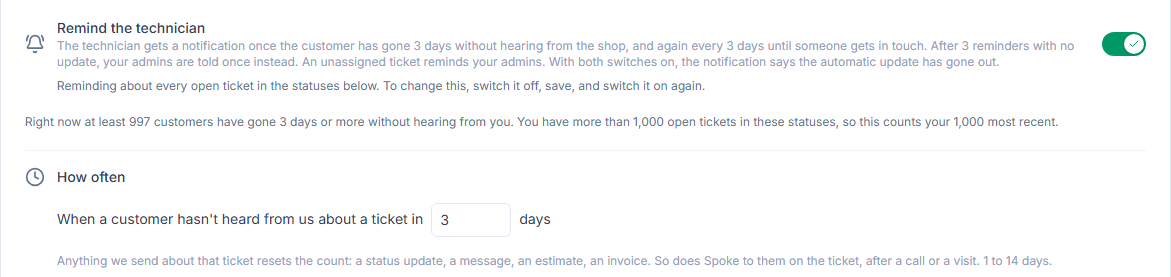
Switch on Remind the technician, choose how many days of silence is too many (from 1 to 14) and which statuses count, and Spekco keeps an eye on every open ticket for you. When a customer has heard nothing for that long, the technician on the ticket gets a notification — or, if nobody is assigned, your admins do — and again every few days until someone gets in touch. After three reminders with no update, your admins are told once, instead of the reminders going on forever.
Anything the shop sends about the ticket resets the count: a status update, a message, an estimate, an invoice. So does Spoke to them on the ticket, after a call or a visit — a voicemail counts. And the reminder knows when the customer is the one waiting: if their own message has gone unanswered, it says so, and names the message.
On the ticket itself, a banner says how long the customer has waited and offers the next step: Send an update starts the message for you from the ticket’s status, ready to change before it goes; Spoke to them records a call for everyone, on every device; No reply needed clears a message that does not need an answer. On the Tickets list, the Customer waiting to hear chip shows how many there are, and each row says how long.
When you switch it on, Spekco asks which tickets it covers: only the ones that go quiet from now on, or also the ones already waiting — the page tells you how many that is before you choose, so switching on never buries anyone in notifications. With Only during shop hours on, nothing arrives overnight.
What you need to do
It is off until you switch it on: Settings → Tickets → Customer updates → Remind the technician.
Tickets · Commerce → Products
Sorting now sorts the whole list
Click a column header on the Tickets list and the whole list is sorted — every ticket, not just the twenty on the page in front of you. Page two carries on where page one stopped, the sort stays put as you page and filter, and a sorted list can be shared as a link. Status now sorts in workflow order and Priority from Low to Urgent, rather than alphabetically. The Products list works the same way.
What you need to do
Nothing.