
One-Click Payment Integration for Repair Shops: Take Cards With Square or Stripe
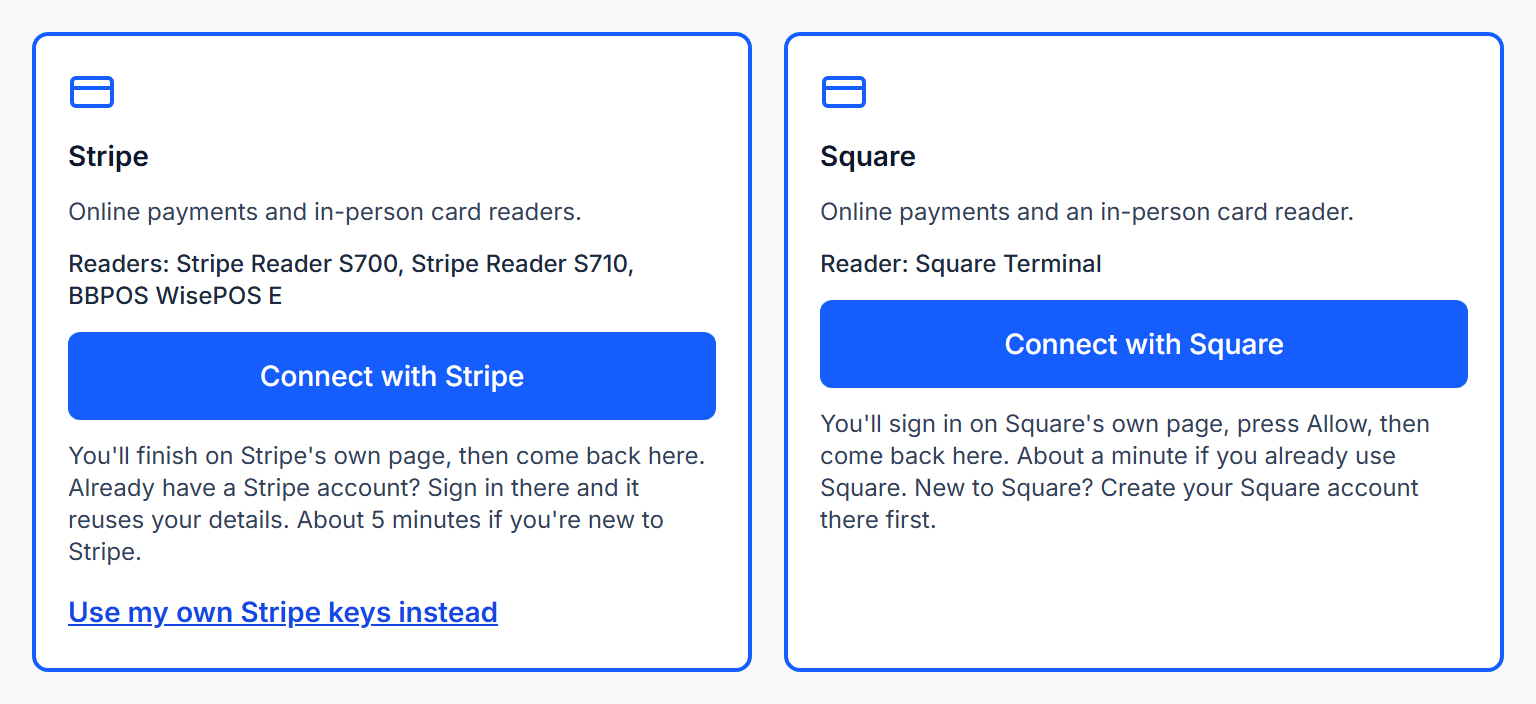
Connecting card payments to Spekco now takes one button. Press Connect with Square or Connect with Stripe, approve it on their page, and your shop is ready to take cards.
Because payments are built into the ticket and the register, a card payment does its own paperwork. When a customer pays an invoice, the ticket is marked paid and the receipt goes out, without anyone at the shop touching it.
The money goes straight to your own Square or Stripe account, and Spekco adds no fee of its own.
Setup Guide → Card payments · Settings → Integrations → Payments
One-Click Payment Integration: Connect Once and Take Cards Everywhere You Sell
One connection covers every place your shop takes a card:
- Emailed invoices, which a customer pays from a phone or a computer.
- The counter, with a card typed in or a card reader.
- Your online shop.
- The customer portal.
Each payment is recorded where it belongs, by itself. A paid invoice marks its ticket paid and sends the customer a receipt. A counter sale closes with its receipt. Nobody copies an amount from a card machine into a ticket.
What it costs: nothing from Spekco. Your card fees are the ones Square or Stripe already charges you, and the money lands in your own account. Spekco never holds it.
Only an admin can connect or disconnect, and disconnecting does not close your Square or Stripe account.
What you need to do
Nothing if you already take cards in Spekco. If you don't yet, pick Square or Stripe below. It takes a few minutes.
Settings → Integrations → Payments · Square tab
Square Payment Integration: Connect Your Square Account in About a Minute
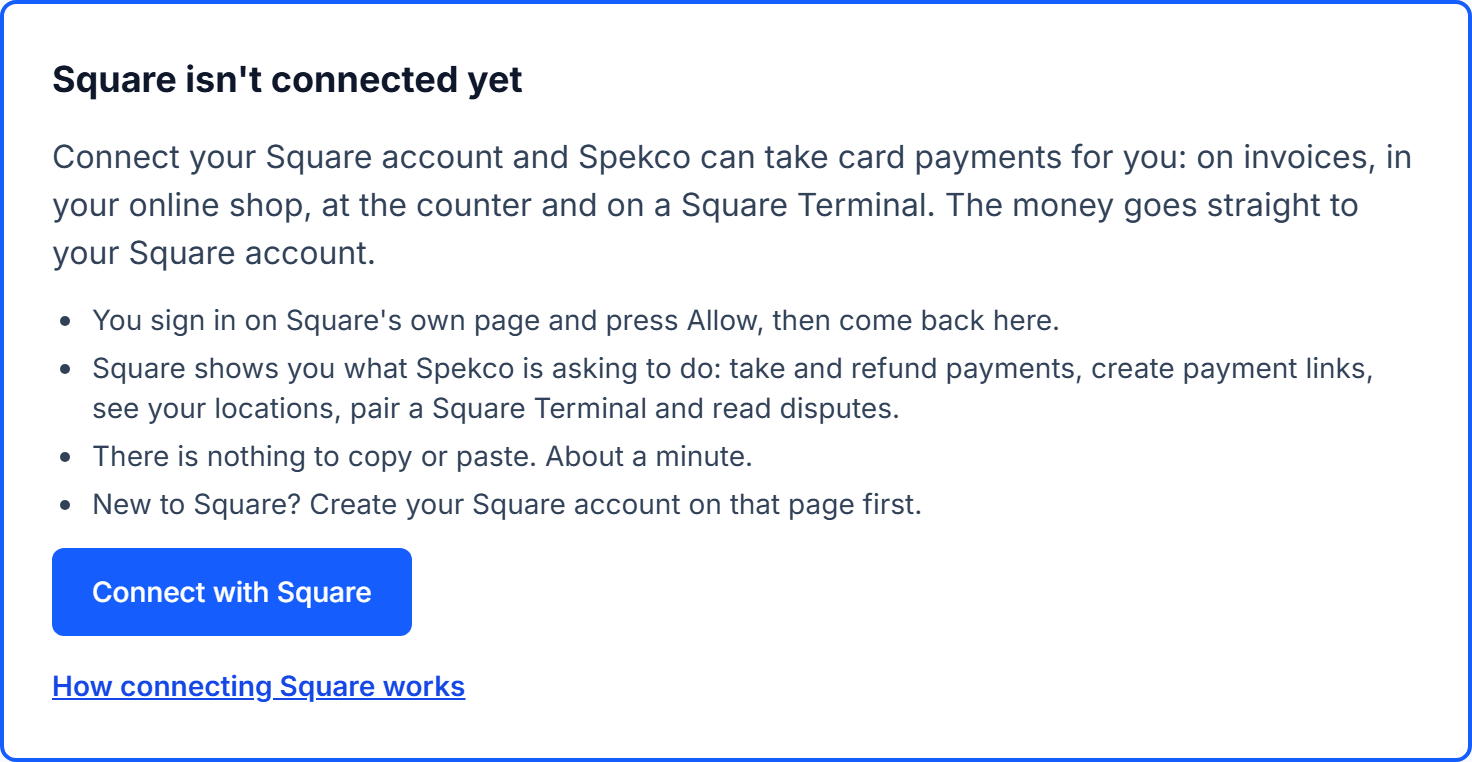
If your shop already uses Square, this is the short path. Press Connect with Square, sign in to Square, and press Allow. Square shows you what Spekco is asking to do before you agree.
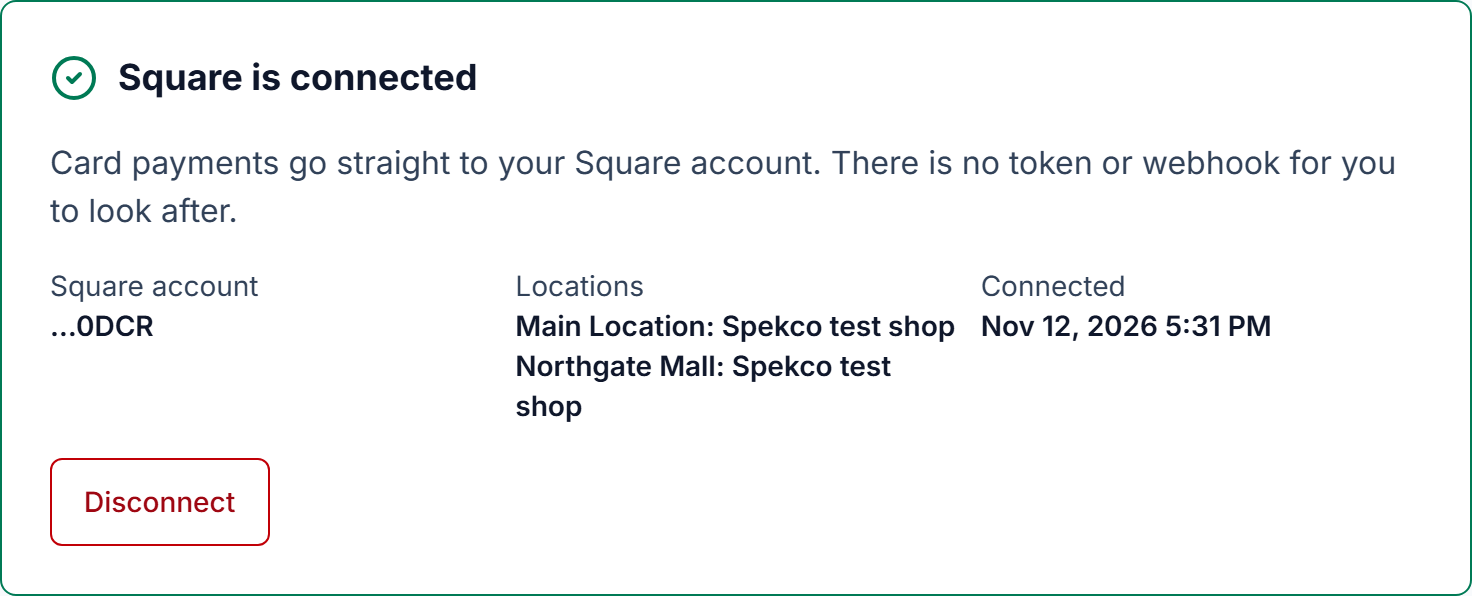
Back in Spekco the page reads Square is connected, and you can take card payments on invoices, in your online shop, at the counter and on a Square Terminal.
Each payment shows up in your Square account with its Spekco order or ticket number, so your Square records and your Spekco records line up.
A shop with more than one location matches each one to its Square location, once. Every sale is then recorded under the right location in Square.
What you need to do
Three steps. About a minute if you already use Square.
- Open Settings → Integrations → Payments and choose the Square tab.
- Press Connect with Square, sign in on Square's page, and press Allow.
- Back in Spekco, check the page reads Square is connected. If it asks you to match your locations, choose one for each and press Save locations.
Settings → Integrations → Payments · Stripe tab
Stripe Payment Integration: Connect With Stripe and Get Paid to Your Own Account
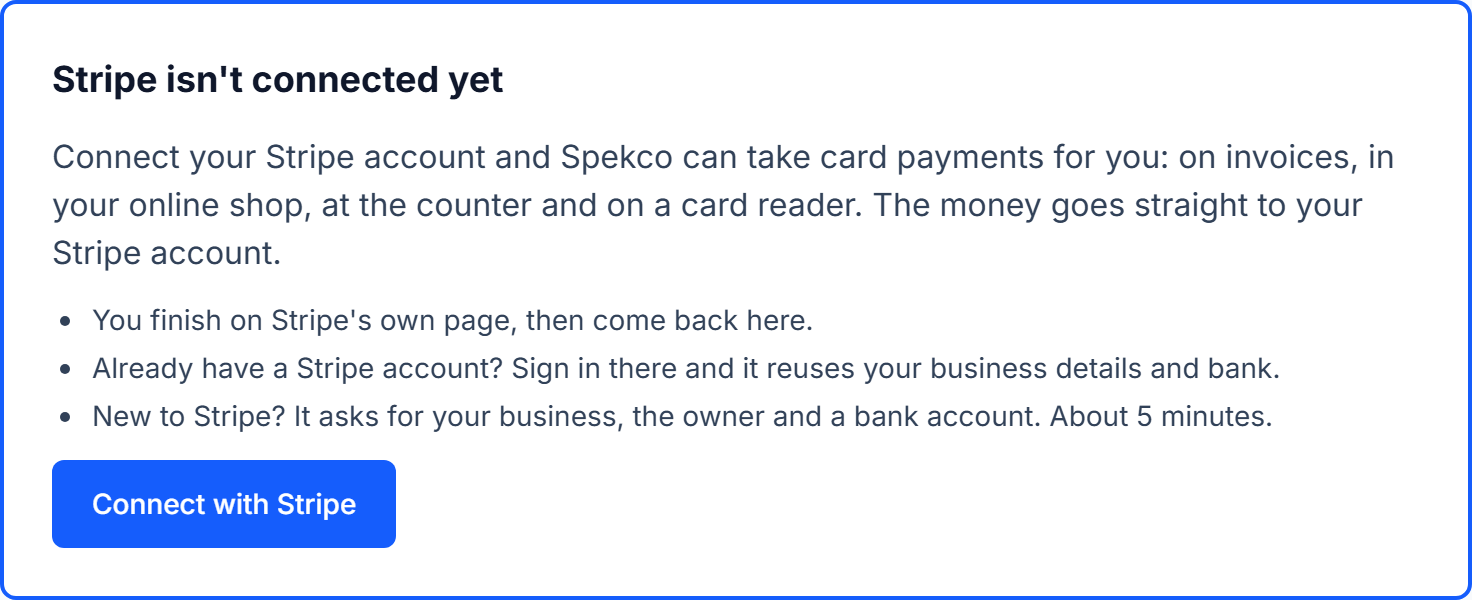
Press Connect with Stripe and you finish on Stripe's own page:
- Already have a Stripe account? Sign in and pick it. Stripe reuses your business details and your bank.
- New to Stripe? It asks about your business, the owner and a bank account. About five minutes.
Back in Spekco the page reads Stripe is connected. If Stripe still needs something from you, the page says what, and Continue at Stripe takes you back to finish.
If your shop already takes cards through Stripe in Spekco, nothing changes and there is nothing to do.
What you need to do
Nothing if you already take cards with Stripe. To connect, press Connect with Stripe on the Stripe tab and finish on Stripe's page.